
Reports
Creating a report
New report on the project's Reports tab opens a four-step wizard: Goal → Datasets → Questions → Review. The craft is almost entirely in step 3 — the questions are the report.
Set the goal#
Give the report a title ("Quarterly Revenue Deep-Dive") and, optionally, describe what it should answer. The intent is worth a sentence or two: it drives the dataset recommendations and AI-drafted questions in the next steps.
Pick the sources#
Choose the datasets and views the report draws from — each question is answered against exactly one of them. With an intent set, GoPie profiles the project and pre-selects sources Recommended for your goal; adjust freely, up to 12 sources.
TipA view that pre-joins your datasets often makes a better source than the raw tables — the questions get simpler, and the join logic lives in one inspectable place.
Write the questions#
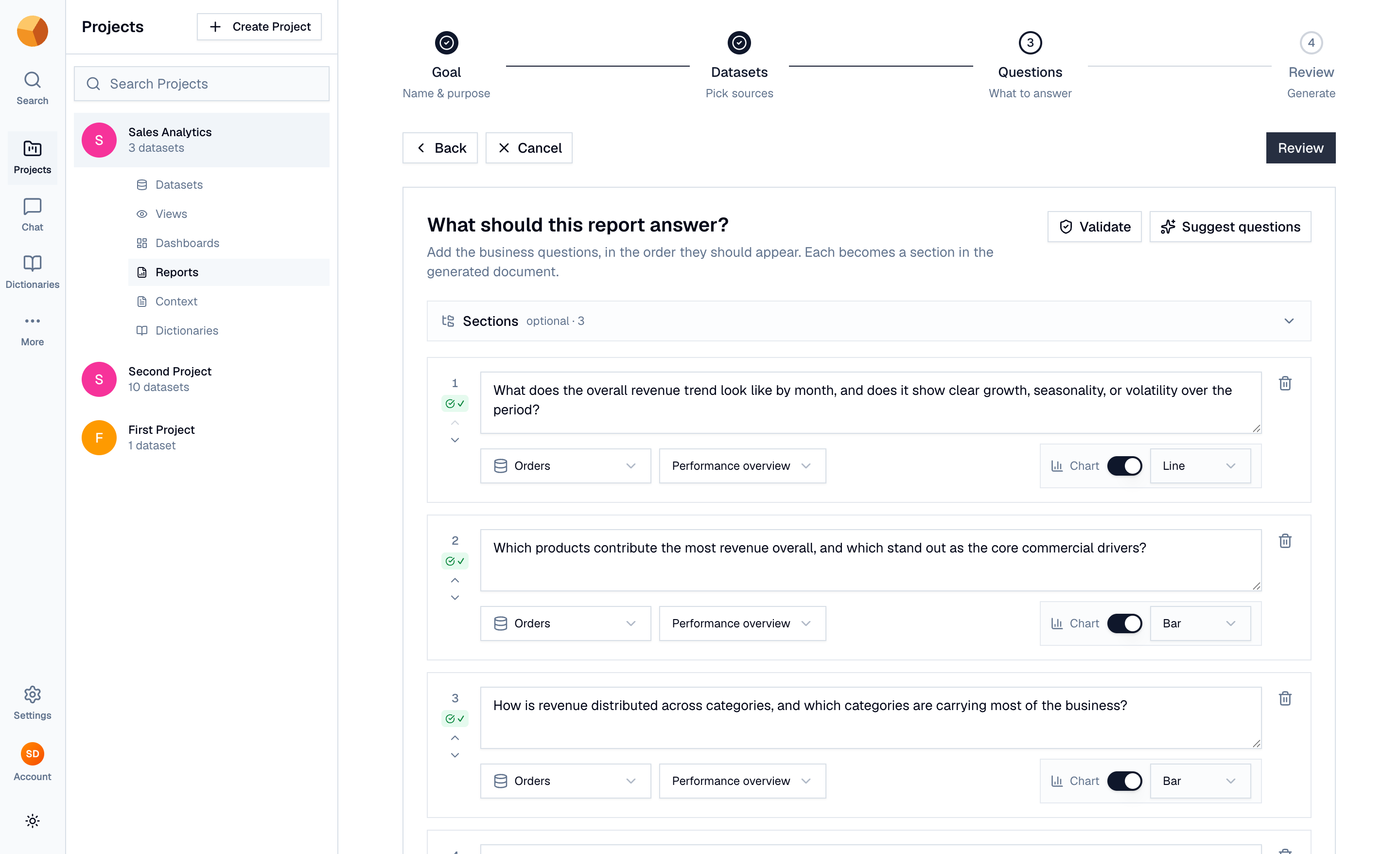
Add the business questions in the order the document should answer them. Per question:
- The question itself — phrased like you'd ask in chat: a measure, a grouping, a time window.
- A source — the dataset or view it runs against.
- Include chart — optionally, with the kind (line, bar, donut, heatmap, and more).
- A section group — optionally, to organise long reports.
Two AI assists sit above the list:
- Suggest questions drafts questions from your intent and the selected schemas — grounded in what the data can actually answer, so it won't propose metrics your columns can't support. Suggestions are appended with an AI tag (they never overwrite yours); edit or delete them like any question.
- Validate probes every question now: GoPie generates SQL for each, executes it, and shows a pass/fail per question — with the SQL and a sample of rows to inspect. Passing questions get their SQL frozen into the definition, so future snapshots re-run the exact same query deterministically.
If the project has indexed context documents, questions can also be From documents (answered by researching the documents rather than SQL), and data questions can be grounded with documents for narrative context.
Review and generate#
The review step shows the report's outline with each question's validation state, and flags the consequences plainly: unvalidated or failing questions fall back to fresh NL→SQL at snapshot time — they'll usually work, but the SQL is regenerated per run rather than frozen. ← Back to fix returns to the editor; Validate now probes everything in place.
Preview report renders the passing questions as a draft document. Generate report creates the report, starts the first snapshot in the background, and takes you to the report page — generation takes a couple of minutes for a typical question list, and the page updates when it's ready.
NoteScheduling is coming soon — reports run on demand today. Generate a new snapshot anytime with Generate now.
The definition stays editable after creation — Settings on the report page reopens the same question editor. Changes apply to the next snapshot; existing snapshots stay frozen. Continue with Snapshots, editing & export.