
Datasets & sources
Uploading files
The upload wizard turns a file into a dataset. If you haven't uploaded anything yet, the getting-started walkthrough does it end to end with a sample file; this page is the full reference.
Choose a supported format#
| Format | Extension | Notes |
|---|---|---|
| CSV | .csv | Delimiter, quoting, and header row are detected automatically |
| JSON | .json | Arrays of objects and newline-delimited JSON are both detected automatically |
| Parquet | .parquet | Fastest to validate — schema and row count come straight from the file footer |
| Excel | .xlsx | The first sheet only is imported; other sheets are ignored |
Files with other extensions are rejected at the picker with "Unsupported file type. Upload one of: .csv, .json, .parquet, .xlsx". Convert tab-separated files to CSV, save .xls workbooks as .xlsx, and rename newline-delimited .jsonl/.ndjson files to .json — the format inside is detected automatically.
The per-file size cap is shown in the dropzone hint (100 GB by default; your deployment may configure a different limit). Projects with data cleaning enabled cap uploads at 800 MB instead.
Pick a mode#
From your project, select Create Dataset. Before you add a file, the top of the wizard offers two modes:
- Manual — you review each stage: validation, column names, AI-generated descriptions, and the dataset name, editing anything along the way. One file per run.
- Auto-pilot — one click does all of it: AI validates the data, fixes column names, generates descriptions, and creates the dataset instantly. Auto-pilot also accepts multiple files — up to 100 at once — and turns each file into its own dataset.
Walk the manual wizard#
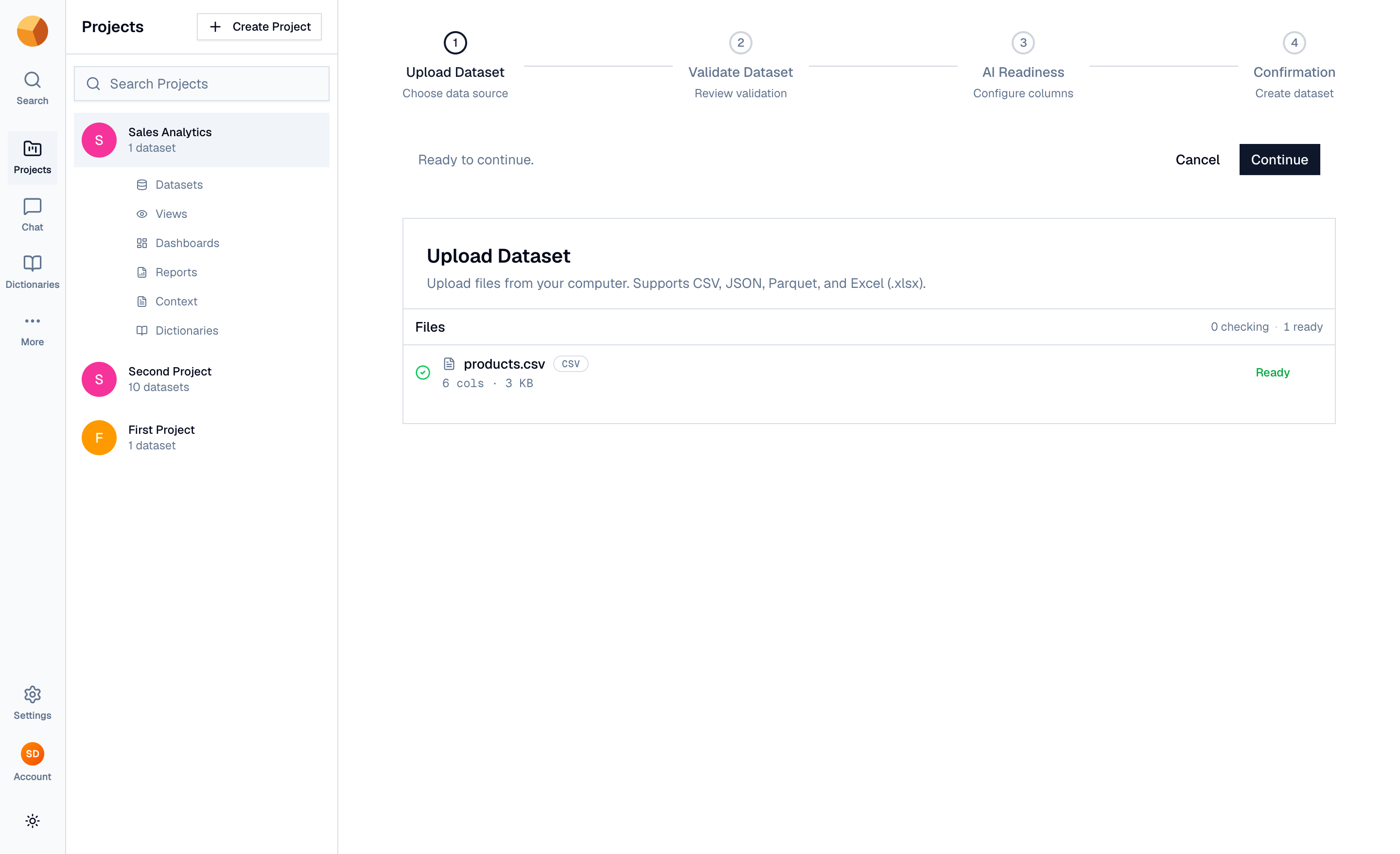
- Upload Dataset — drop a file on the dropzone or browse for it. The file appears in a live manifest with a format badge and a status that moves through Reading…, Checking…, and Describing… to Ready. Validation runs in your browser using an embedded query engine — it reads only the schema and a small preview, so even multi-gigabyte files check in seconds and nothing uploads yet. Files that can't be parsed show Can't read this with Retry and Remove.
- Validate Dataset — a summary of the detected columns and types. When the file is valid the wizard shows the result briefly and moves on by itself.
- AI Readiness — a column editor with AI-drafted descriptions. Column names are normalized to snake_case; fix any flagged names (the wizard can auto-fix them) and edit descriptions until every column reads Valid. You can't continue while a column name is invalid.
- Confirmation — GoPie suggests a dataset name from the filename and drafts a description (editable, minimum 10 characters). Optionally add a Custom Prompt — extra context the AI will use whenever it queries this dataset. Select Create Dataset.
Watch the creation run#
After Create Dataset, the file uploads to storage (with a live progress bar), then the server takes over with a streamed step-by-step timeline: validating the project, ingesting the file, fetching dataset metrics, creating the record, and finalizing.
The success screen — "Dataset Created Successfully!" — offers View Dataset, Download Metadata (a PDF or JSON report of the schema), and Create Another Dataset.
Two things continue in the background:
- Column statistics — the profile panel may briefly read computing… while row counts and unique values are calculated. It refreshes on its own.
- Search indexing — the schema is indexed so the AI can find and chat with the dataset. If indexing fails, the dataset is still created; you'll see a warning with a Re-index button, and the same action is always available under Settings → Maintenance.
Run Auto-pilot on many files#
In Auto-pilot mode, drop up to 100 files and select the create button (it counts what it will make — "Create 12 datasets"). Files process five at a time, each stepping through its own pipeline: validating, generating column descriptions, fixing column names, naming the dataset, generating its description, uploading, and creating.
- Each file becomes one dataset, named from its filename.
- A file that fails doesn't stop the rest — it gets a per-file Retry (plus a global Retry All), and unreadable files are skipped with a note: "N file(s) can't be read and will be skipped."
TipAuto-pilot is the fast path for bulk imports; you can still edit any generated name or description afterwards in the dataset's settings.
Upload into a cleaning-enabled project#
If the project has Enable Data Cleaning switched on, the wizard swaps its second step for Standardisation — schema inference, assisted fixes, and a reviewable cleaning plan run before the dataset is created, and uploads cap at 800 MB. That flow has its own page: Data cleaning.
Something not working? See Troubleshooting uploads.