
Database & cloud sources
Connect to PostgreSQL
Import any query result from a PostgreSQL database (or a compatible service such as Supabase, Neon, or RDS Postgres) as a dataset.
Before you start#
You need a connection string for a user that can read the tables in your query:
postgres://user:password@host:5432/databaseEncode any TLS options (?sslmode=require) and non-default ports directly in the string. Make sure the database is reachable from your GoPie deployment — private hosts may need network allow-listing.
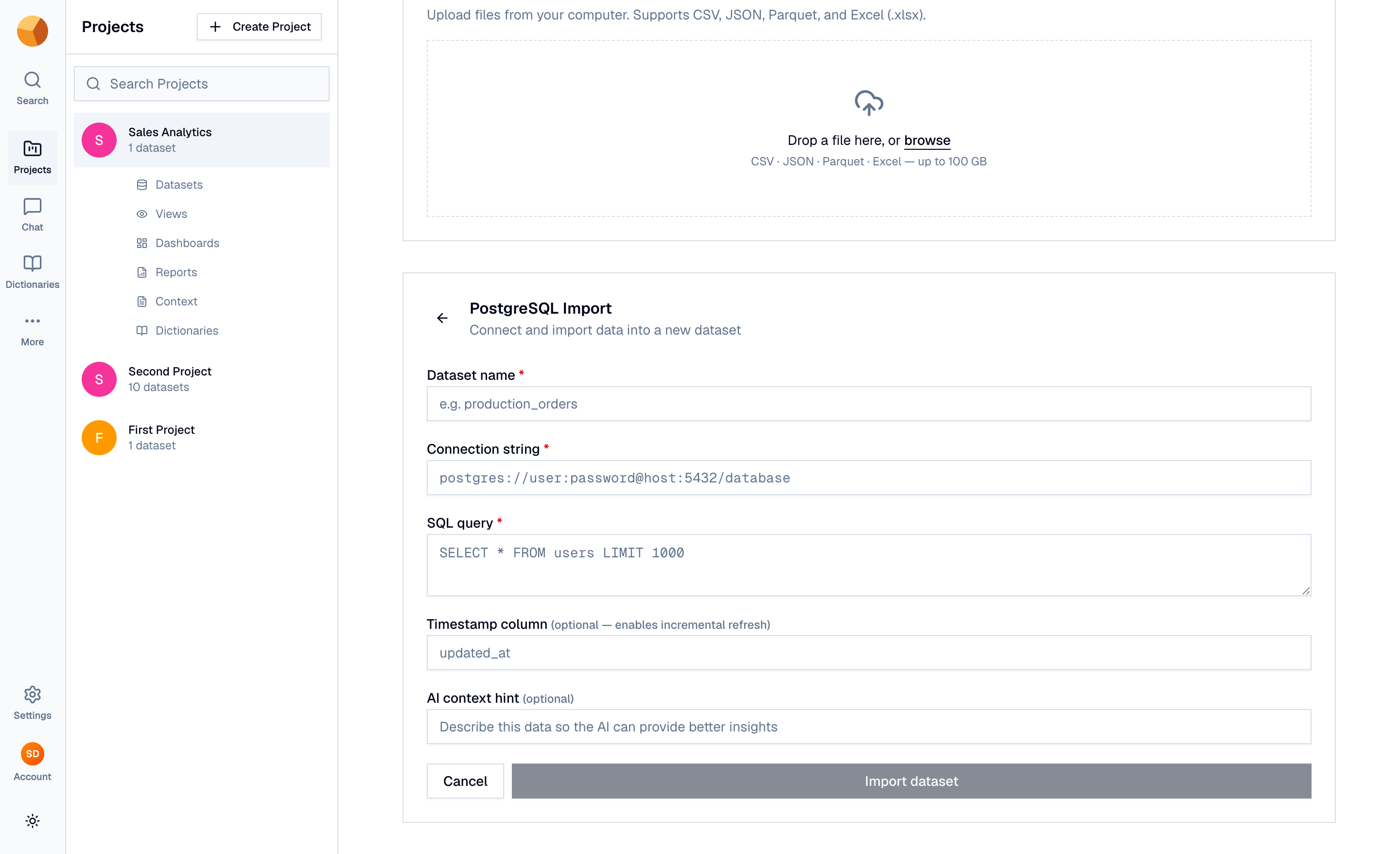
Connect#
- From your project, select Create Dataset, then the PostgreSQL tile under Connect to Database.
- Name the dataset and paste the Connection string.
- Write the SQL query whose result becomes the dataset — for example
SELECT * FROM orders WHERE created_at > now() - interval '2 years'. - Optionally set a Timestamp column (see below) and an AI context hint, then select Import dataset.
Enable incremental refresh#
Set Timestamp column to a column in your query's result that only grows — updated_at or created_at are typical. On each incremental refresh, GoPie appends only the rows where that column is later than the previous run's high-water mark, instead of re-importing everything. Full refresh remains available either way. See Refresh & scheduled refreshes.
TipIncremental refresh appends — it won't pick up updates or deletions to rows it already imported. If your table mutates in place, use full refresh.