
Chat
Starting chats & choosing context
A chat always runs against an explicit context — the datasets, projects, or views you attach. This page covers the entry points and how to scope a conversation well.
Start from anywhere#
- The home launchpad — the composer on your home page ("Ask anything about your data…"). Pick a context, type a question, and GoPie opens a new chat and answers it in one step. Your recent conversations, projects, and dashboards are listed right below.
- Chat in the left rail — opens the chat workspace with an empty composer and a Previous Chats link.
- Pre-scoped buttons — Chat with dataset, Chat with view, and Chat with project on their respective pages (and the chat icon on dataset and view cards) open a new chat with that context already attached.
Pick the context#
The @ button in the composer opens the context picker.
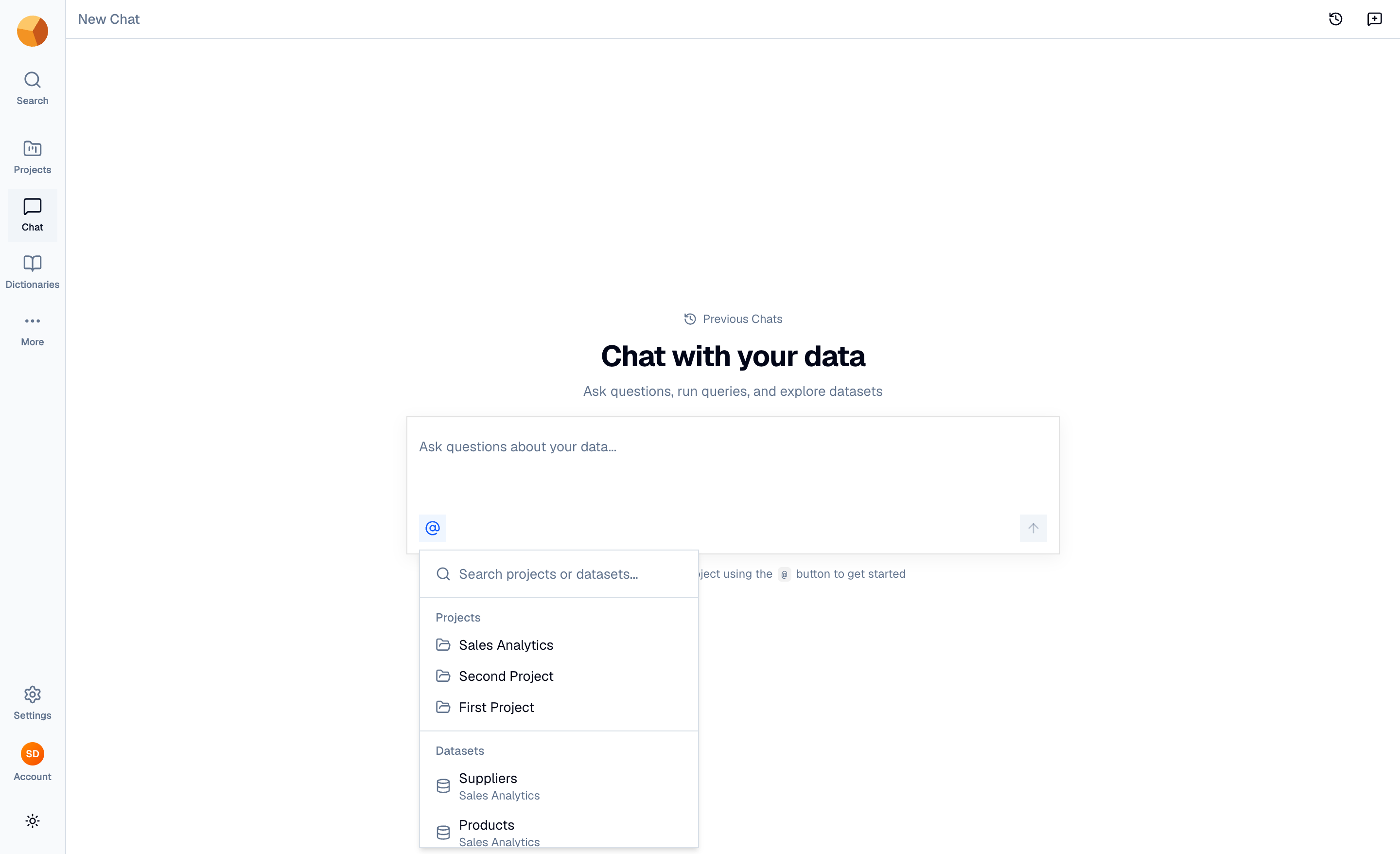
- Search or browse — the picker lists your Projects and Datasets (with each dataset's parent project shown underneath), filtered as you type.
- Select one or more — each selection becomes a chip in the composer. Mix freely: several datasets, a whole project, or both at once.
- Adjust anytime — remove a chip with its ×, or reopen the picker mid-conversation to add more context for your next question.
You can't send without a context — the composer asks you to "Select a dataset or project first using the @ button".
What each context contributes:
| Attach | The agent gets |
|---|---|
| A dataset | That table's full schema, descriptions, and sample values |
| A project | The project's description and its datasets' schemas, plus semantic search across them and the project's context documents |
| A view | The view's schema — queried like any dataset |
NoteViews join a chat through the Chat with view button on the view's page — the picker itself lists projects and datasets.
TipAttach the narrowest context that can answer the question. A single dataset gives the agent a smaller search space than a whole project — faster answers, less ambiguity.
Chat with a past version#
On deployments with version history, previewing an older snapshot of a dataset changes the button to Chat (vN) — the conversation then queries the dataset as of that version, and results in the panel carry a version pill so it's clear you're not looking at current data.
Ask the question#
Write it the way you'd ask a colleague — name the measure, the grouping, and the time window when you can ("revenue by product category, monthly, for 2026"). The composer keeps your context for follow-ups, so refine step by step. For what makes questions land reliably, see Tips for better questions.