
Getting started
Chat with your data
Ask in plain language#
Chat answers questions you would otherwise write SQL for. The agent finds the right data, runs SQL against it, and answers in prose that cites the datasets it used. Generated queries land in the transcript with Run buttons, so you can inspect the SQL behind any answer.
Start a chat#
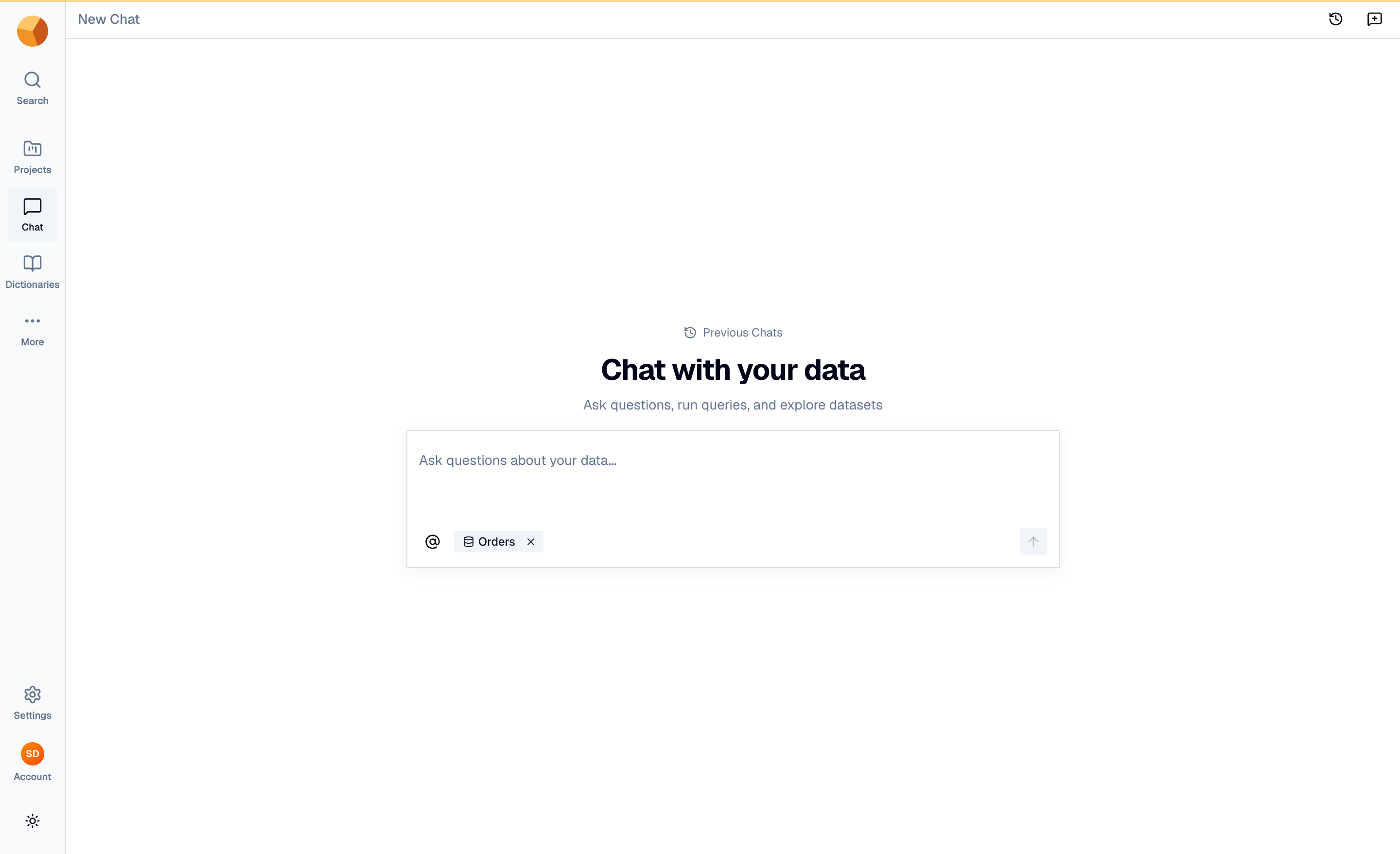
Chat opens from the home launchpad composer, from Chat in the left rail, or pre-scoped via Chat with dataset and Chat with project on their pages.
- Open a new chat from any entry point.
- Select a context — click the @ button and pick datasets, a project or views; the composer requires one. A chip (here, Orders) marks it.
- Ask your question — for example: "Which product category brings in the most revenue? Show the monthly trend as a chart."
Read the answer#
The agent streams its steps as it works — loading context, executing SQL, reasoning — then collapses them behind Show steps. Press Esc to stop a run.
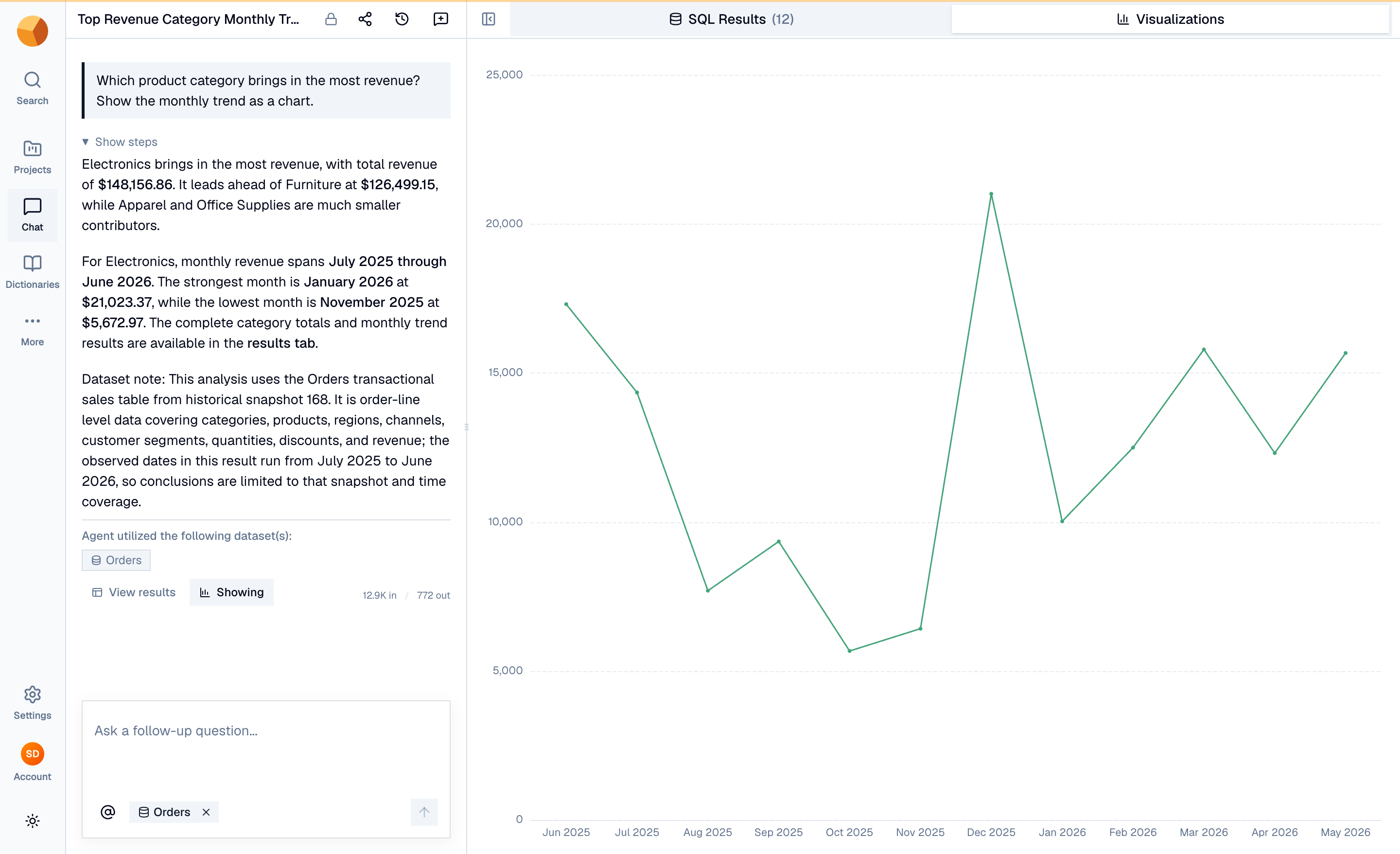
The answer is prose with the key figures bolded: Electronics leads at $148,156.86, strongest in January 2026 ($21,023.37). Beneath it, "Agent utilized the following dataset(s)" cites the sources. A results dock opens beside the chat with SQL Results and Visualizations tabs — the line chart renders because the question asked for one.
TipBe specific: name the measure and the grouping ("revenue by month for Electronics"), and ask for a chart explicitly when you want one.
Follow up and keep the results#
The composer keeps your context for follow-ups. In the results dock, Download results exports the rows; Save as view turns the query into a reusable dataset. Chats are private by default with a Share chat button, and each conversation is auto-titled under Previous Chats.
Ready for a full canvas? Generate your first dashboard. And when you want the full picture — how the agent finds your data, sharing, saving results — the Chat section goes deep.