
Chat
Reading results
A chat answer is more than the reply text — it's a transcript of how the agent got there, plus a results panel holding the actual rows and charts. Knowing where everything lands makes answers easy to verify.
Watch the steps#
While the agent works, its progress streams into the transcript grouped by phase — Context, Discovering datasets, Planning query, Running query, Validating results — with a step counter ("Processing · 4 steps"). When the answer finishes, the timeline collapses behind Show steps, with the total time alongside.
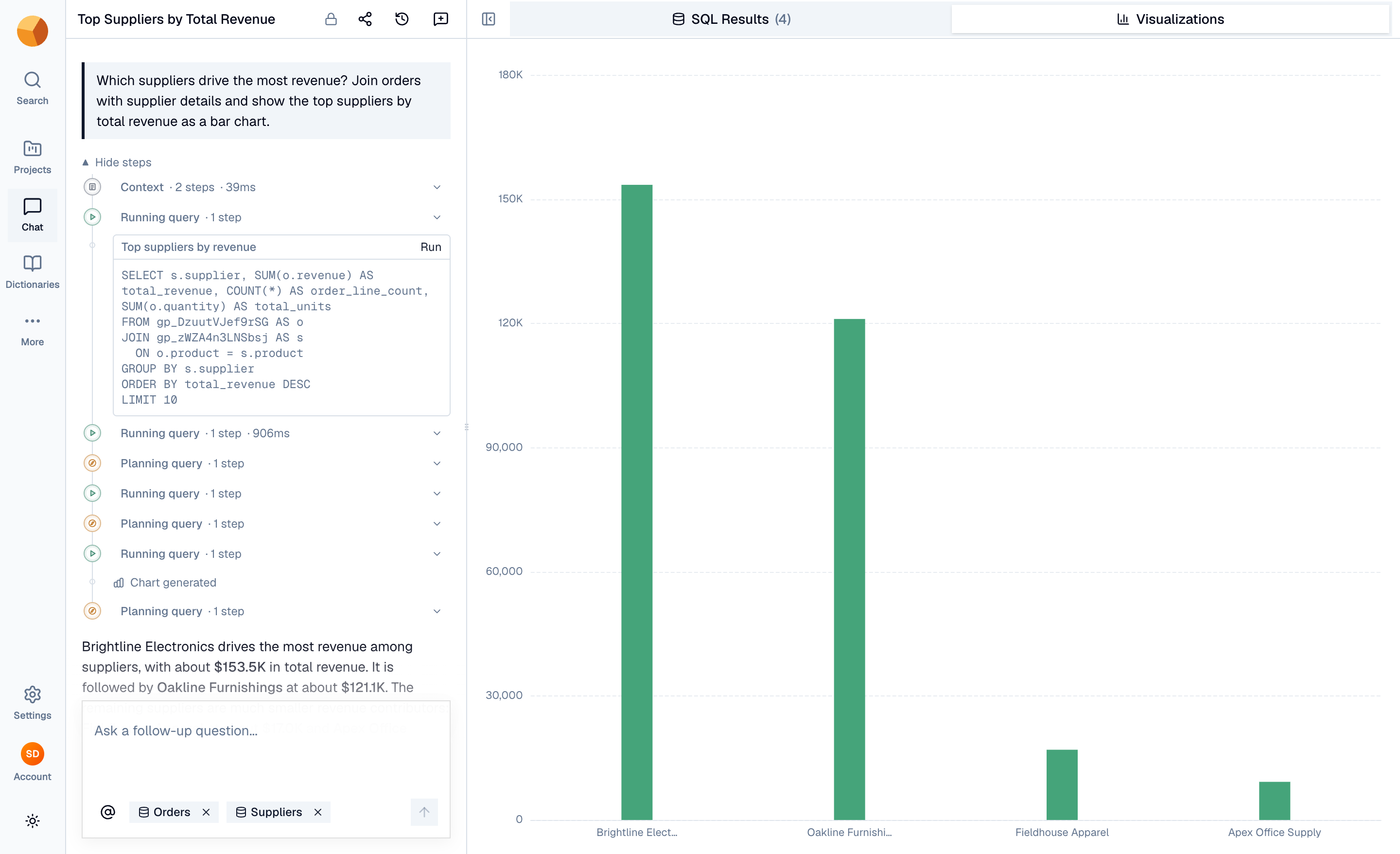
Inside the steps you'll find every SQL query the agent executed, each with a Run link that re-executes it into the results panel. Press Esc (or the stop button in the composer) to stop a response mid-generation.
Read the answer#
The reply is prose grounded in the executed results, with key figures highlighted. Two provenance strips follow it:
- "Agent utilized the following dataset(s):" — chips linking to each dataset the answer drew on.
- "Sources cited:" — when the agent consulted context documents, numbered references linking to them.
Under each answer, two pills bind that turn's artifacts to the results panel: View results and View visualization.
When a question can't be answered from the data — or doesn't need SQL at all — the agent replies in plain prose explaining why, with no results attached. That's a deliberate answer, not a failure.
Work the results panel#
The results panel opens beside the chat whenever a turn produces rows or a chart:
- SQL Results — the executed rows in a virtualized table (with the row count in the tab), the query's execution time, and infinite scroll for large results. If the query ran against a past dataset version, a vN pill marks it.
- Visualizations — the chart, when you asked for one. The agent picks from GoPie's chart catalog (line, area, bar, pie, scatter, heatmap, and more) to match the shape of the data — and only draws when a chart was requested.
The toolbar also holds Download results and Save as view. Need more room? Collapse the chat pane with the panel toggle (⌘ \) and give the results the full width. On mobile, results open as a bottom sheet instead.
Recognise the failure modes#
- A failed query shows a "Query execution failed" alert in the results panel with the error, the SQL that failed, and — when available — a suggestion for fixing it. The agent usually repairs failed queries itself mid-turn; this surface matters when you re-run a query by hand.
- A slow response raises a banner — "This is taking longer than usual." — with Reconnect and Stop. If the stream dies, the banner turns into an error with Retry.
- A reloaded page resumes. If you reload (or lose connection) mid-answer, the chat picks the stream back up where it left off — see History, sharing & reliability.