
Dashboards
Version history & restore
Every change to a dashboard — a manual tile edit, an AI generation, a chat edit, a restore — records a version. The canvas is never one bad edit away from lost work.
Browse the history#
The Version history button on the toolbar opens the panel:
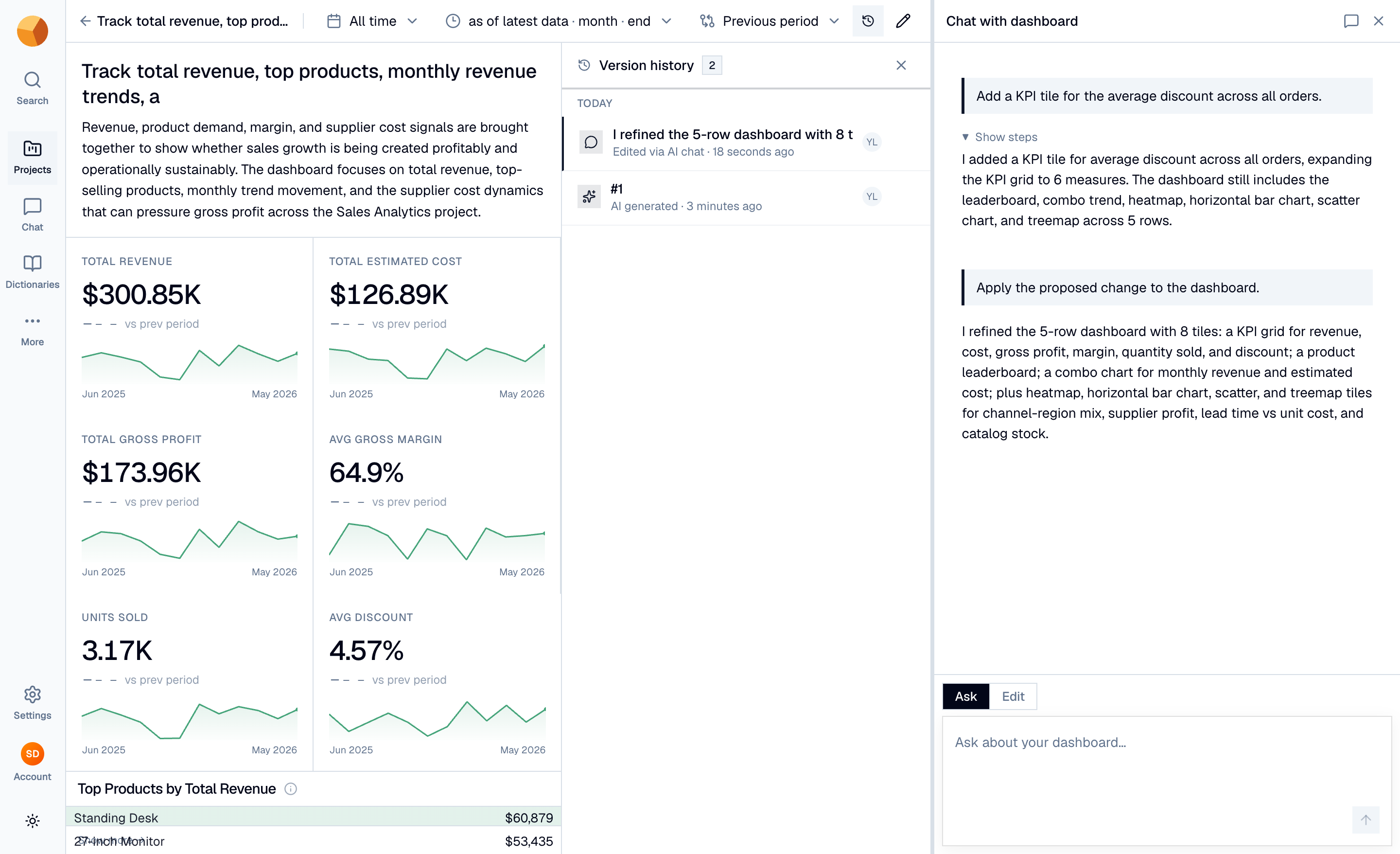
Each row shows the version's label (a custom name, or the AI's summary of the change), when and who, and its origin:
- Manual edit — canvas edits by hand. Rapid consecutive edits by the same person fold into one version, so dragging tiles around for five minutes doesn't create fifty entries.
- AI generated / AI refined / Edited via AI chat — each AI change is its own version, labelled with what the AI did.
- Restored from earlier version — restores are versions too.
The current canvas is tagged Current.
Restore, name, pin#
The row menu holds three actions:
- Restore this version — brings the canvas back to that state. Your current dashboard is saved as a new version first, so a restore never destroys anything — you can restore the restore.
- Name this version… — give a milestone a label ("Q2 board review"). Named versions are kept forever.
- Pin — same permanence without renaming.
Restoring is available to anyone with edit permission; naming and pinning are offered while the dashboard is in edit mode.
Understand retention#
History is pruned in the background: each dashboard keeps its most recent ~50 versions, but pinned and named versions never expire. Pin anything you might want to return to months later; the unpinned middle history is working memory, not an archive.
TipBefore a big AI restructuring — "redesign this around weekly cohorts" — pin the current version. If the new direction disappoints, restore is one click, and the experiment cost nothing.