
Collaboration & admin
Organisations & members
Everything in GoPie lives inside an organisation — projects, datasets, chats, dashboards, applications. Your team shares one organisation; every resource you create belongs to it, and only its members can ever see it.
When you sign up, GoPie quietly creates a first organisation for you (named after you) and makes you its owner — you never start without one.
Switch and create organisations#
You can belong to several organisations, but you work in exactly one at a time — the active organisation. The switcher lives in the account menu at the bottom of the sidebar: it lists your organisations with your role in each, and Create organisation sits at the bottom of the list. Switching lands you back on the home page with everything — projects, chats, dashboards — re-scoped to the new organisation.
Creating an organisation takes a name (an URL slug is derived automatically); you become its owner.
NoteOn self-hosted deployments where registration is disabled, creating organisations is disabled too — an administrator provisions them from the admin console.
Manage members#
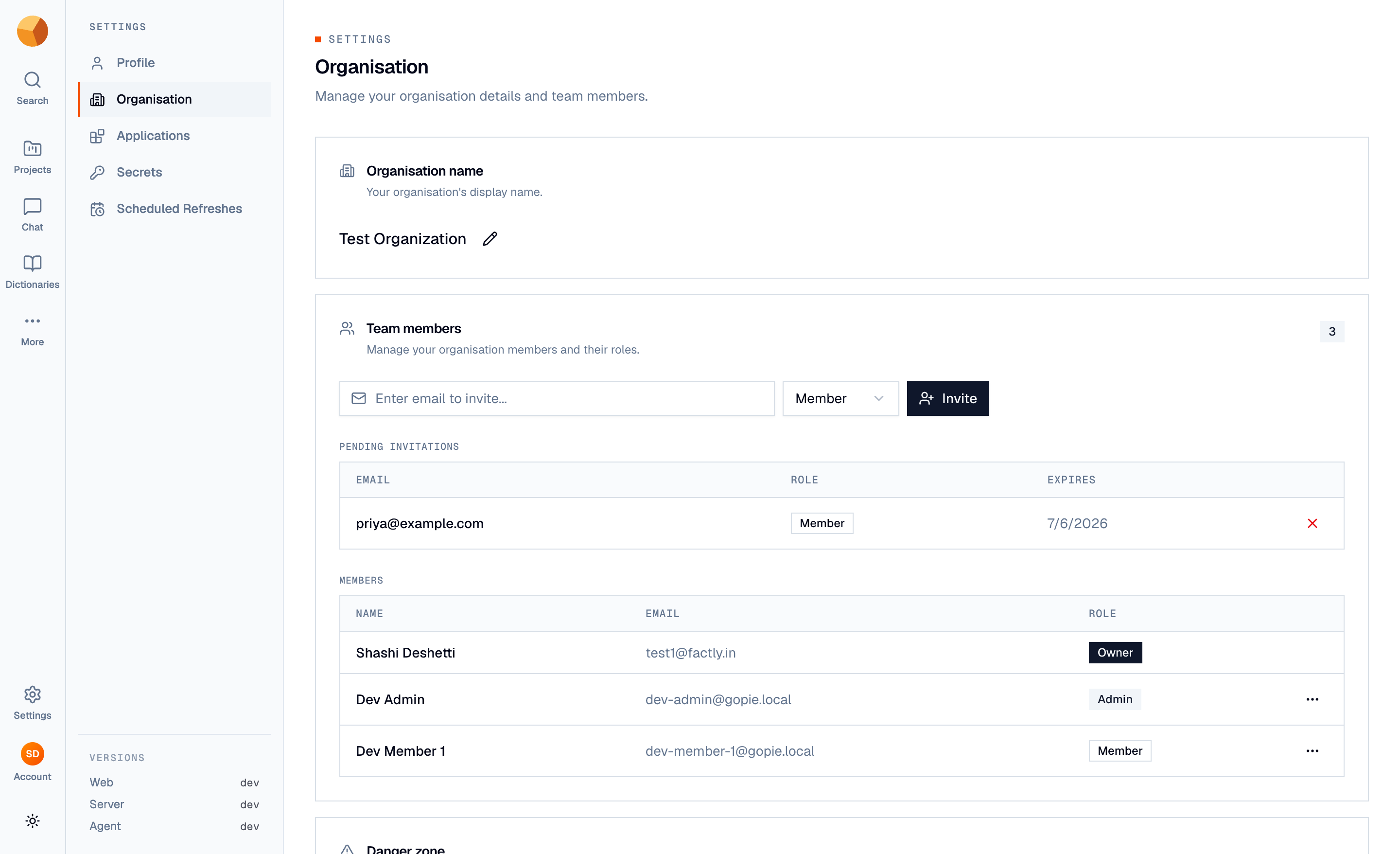
Settings → Organisation is the team page: the organisation's name (owners can rename it in place), the members table with each person's role badge, and pending invitations.
Invite someone#
Owners invite by email: enter the address, pick Member or Admin as the starting role, and press Invite. The invitation:
- lands in the recipient's inbox as a link (and, if they already use GoPie, appears under Settings → Invitations and as a badge in their sidebar),
- expires after 48 hours — cancel a pending one anytime with the × next to it,
- is accepted on a page showing the organisation, the role offered, and who invited them; new users create their account first, then accept.
NoteInvitations are how teams grow on gopie.ai. On self-hosted deployments with registration disabled, the invite form is replaced by a notice — users are added by a system administrator instead.
Change roles and remove members#
The row menu on each member (owner-only) offers Change role — between Member, Admin, and Owner — and Remove member, which immediately revokes their access to everything in the organisation. What each role can do is the subject of Roles & permissions.
You can't change your own role from the members table. To hand the organisation over, use ownership transfer.
The danger zone#
At the bottom of the organisation page:
- Transfer ownership (owners) — pick a member; they become the owner and you are demoted to admin, not member. This is also the only way to step down as owner: owners can't leave.
- Delete this organisation (owners) — removes the organisation, its members, and all of its data. You must type the organisation's name to confirm. There is no undo.
- Leave this organisation (admins and members) — removes you and your access; the organisation and its data stay.
If deleting or leaving strips you of your last organisation, GoPie shows a non-dismissable prompt to pick or create one — you can't work without an active organisation.