
Query & analyze
SQL playground
Every dataset and view page has a built-in SQL workspace. Open a dataset and it's already there: an editor pre-loaded with SELECT * FROM <table> LIMIT 100, executed for you, with the results in a grid below. There's nothing to launch — the playground is the dataset page.
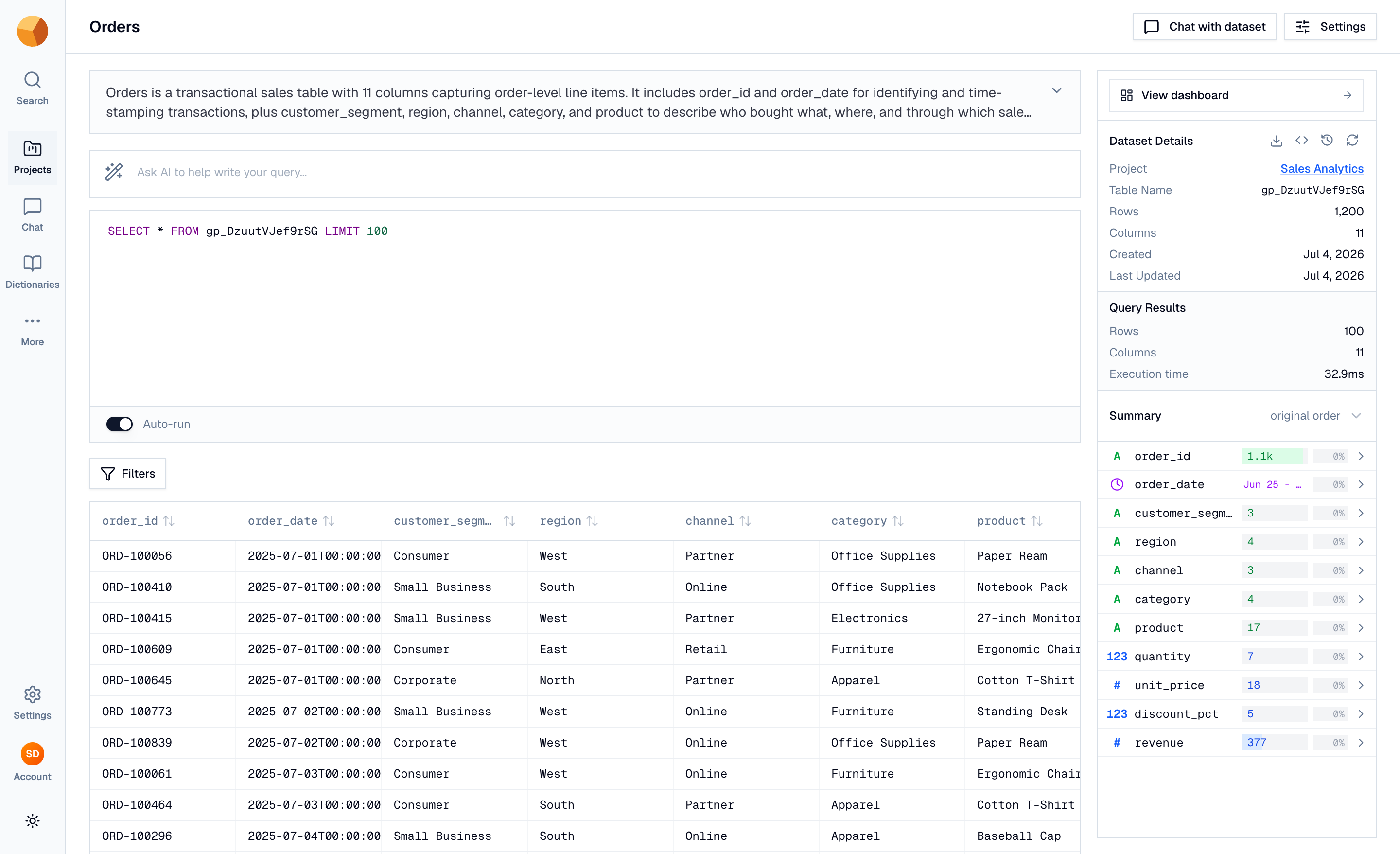
Write and run a query#
The editor speaks SQL with help:
- Autocomplete suggests the open dataset's column names as you type — each with its type and description — alongside SQL keywords.
- Press ⌘ Enter (or Ctrl Enter) to run, or use the Run button.
- Auto-run, on by default, re-runs the query about a second after you stop typing — as soon as it validates. Flip the toggle off if you'd rather run explicitly.
Queries are read-only: SELECT, WITH, DESCRIBE, and SUMMARIZE statements are allowed, one statement per run. Nothing you type in the playground can modify data.
Let validation catch typos#
As you type, the query is validated locally in your browser against the dataset's schema — before anything reaches the server. Syntax errors get a wavy underline and a banner:
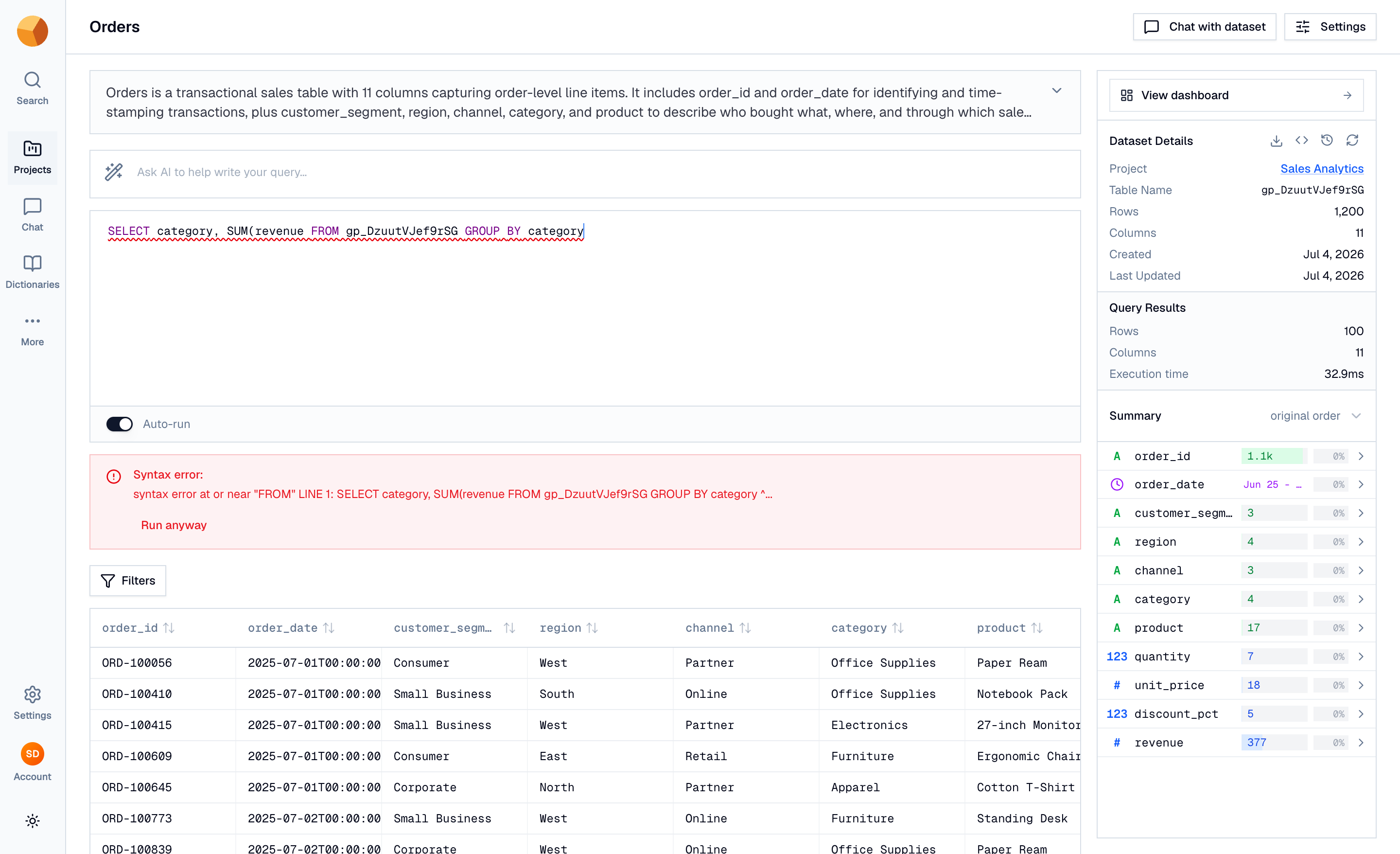
If you're sure the validator is wrong (it only knows the open dataset — references to other tables are deferred to the server), Run anyway sends the query regardless. Errors from the server itself appear in a separate banner with its real message, so you can see exactly what it objected to.
NoteLocal validation and auto-run both run as you type — see The SQL GoPie speaks.
Read the results#
Results render in a virtualized grid built for wide data — resizable columns, monospace values, null shown in muted italics. The right rail's Query Results panel shows the row count, column count, and execution time of the last run.
Playground results are a working preview, not a bulk channel: each run returns a bounded number of rows (200 by default). For complete results, export the query as a file — exports have no row cap — or page through your dataset's REST API.
Query across datasets#
The FROM clause isn't limited to the open dataset. Reference any other dataset's table name and the server resolves it — joins across datasets work exactly as you'd expect:
SELECT p.category, SUM(o.amount) AS revenue
FROM gp_orders o
JOIN gp_products p ON o.product_id = p.product_id
GROUP BY p.category
ORDER BY revenue DESC
Find a dataset's table name under Dataset Details in its right rail. Two things to know: autocomplete only offers the open dataset's columns, and access is checked per dataset — you can only query tables you're allowed to see. To keep a cross-dataset query around permanently, save it as a view.
Query a past version#
On deployments with version history, the playground is version-aware: while you're previewing an older version of the dataset, every query you run executes against that version, not the current data — and the results are captioned with their provenance. Exit the preview and queries return to head.
Export what you found#
The right rail's download button opens the export dialog with the full-table query pre-filled — replace it with your playground SQL to export exactly the rows you were looking at, as CSV, JSON, or Parquet. See Downloads & exports.
Know what the playground doesn't keep#
The editor resets to the default query whenever you leave the page — there's no query history. If a query is worth keeping, make it a saved view: it becomes a first-class object you can preview, chat with, and serve over the API.