
Query & analyze
Saved views
A view is a SQL query saved as a first-class object. Once saved, it behaves like a dataset: it has a name and description, a preview, its own REST API, a Chat with view button, and dashboards can be generated from it. Views are how a one-off query becomes part of your project.
Views live in each project's Views tab, searchable and sortable, in table or card layout.
Create a view from scratch#
The view builder is a full-page playground with every dataset in the project at hand:
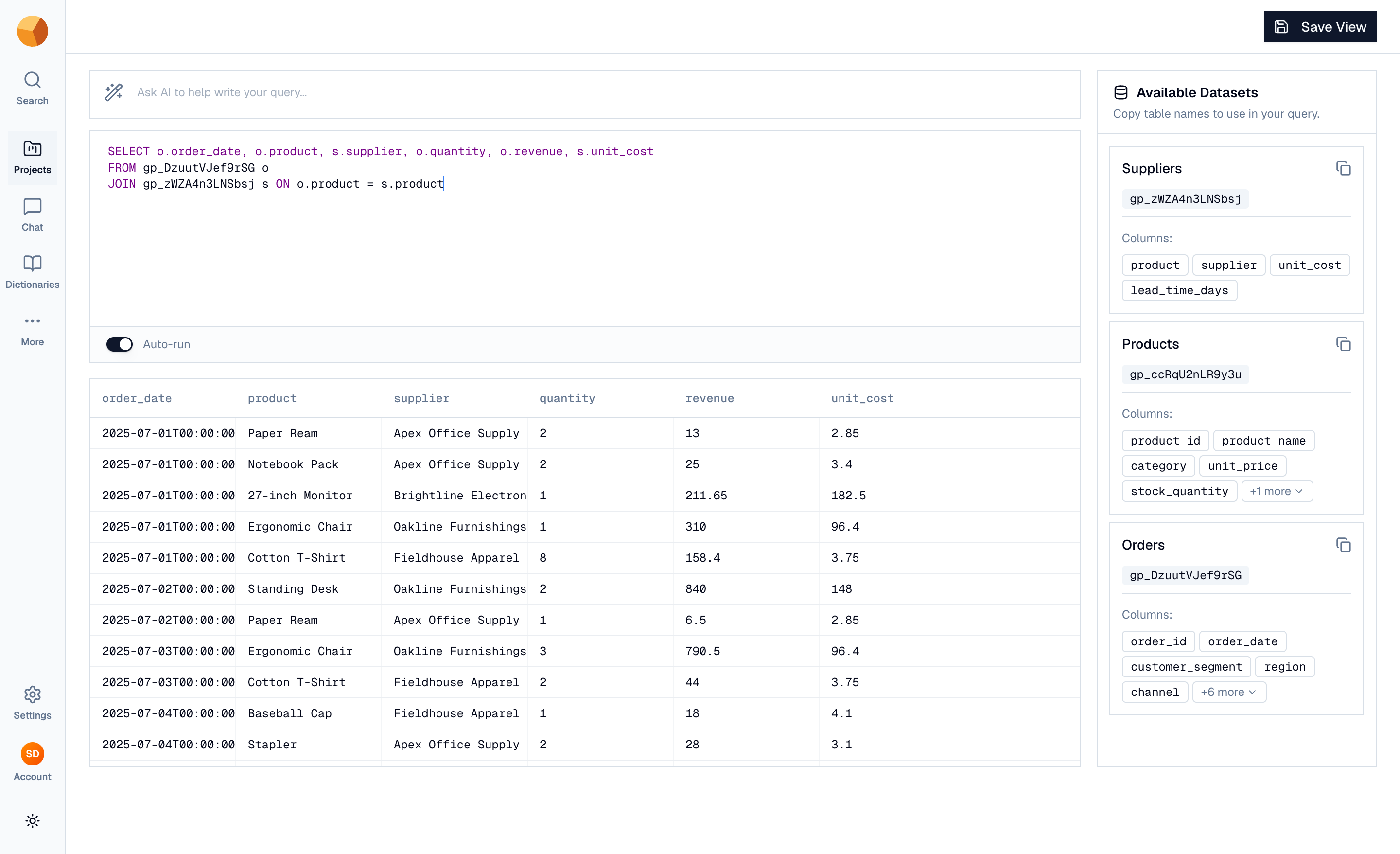
- Open the builder — from the project's Views tab, select Create View.
- Write the query — the right rail lists Available Datasets ("Copy table names to use in your query") with each table's columns. The AI bar works here too, aware of every table in the project.
- Run it — previewing the results first is optional but wise.
- Save View — give it a name (at least 3 characters) and, optionally, a description. Leave the description blank and GoPie writes one from the query.
Save a chat answer as a view#
When chat produces a result worth keeping, the results panel's Save as view button turns the answer's SQL into a view directly — pick the project, name it, done. The query is shown read-only in the dialog so you can see exactly what you're saving.
Join datasets in one view#
A view's query can join any datasets in the project:
SELECT o.order_date, p.product_name, p.category, o.amount
FROM gp_orders o
JOIN gp_products p ON o.product_id = p.product_id
That's the quiet superpower: the join happens once, in the view definition, and everything downstream — chat, dashboards, the API — treats the result as a single flat dataset. Anyone can then ask questions of "Orders with product details" without knowing a join was ever involved.
Work with a view#
A view's page mirrors a dataset's page:
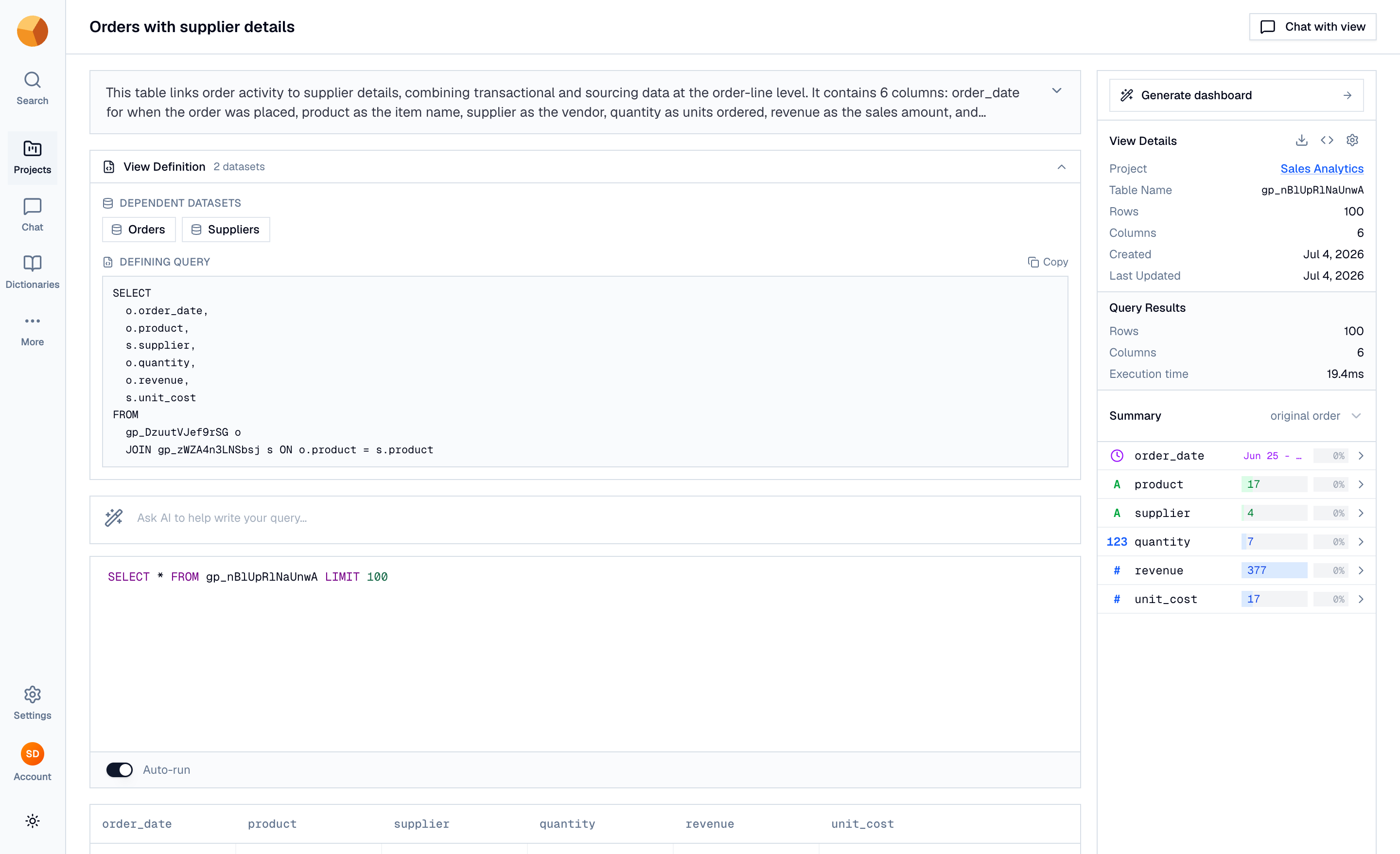
- View Definition — a collapsible panel showing the datasets the view depends on and the formatted defining query, with a copy button.
- A full SQL playground and preview below it, for querying the view like any table.
- Settings — edit the description, a custom AI prompt, and per-column descriptions (they autosave, like everywhere else).
- API — the same API explorer datasets get.
- Dashboard — generate a dashboard from the view.
Trust that views stay live#
A view stores the query, not a copy of the results. Every time anything reads the view — you, chat, a dashboard, an API caller — the SQL re-executes against the current data. When an underlying dataset refreshes, the view reflects it immediately; there is no separate "refresh the view" step and nothing to go stale.
NoteViews don't have their own version history, and time-travel queries can't target a view — to query the past, use version history on the underlying dataset itself.
Know that the query is fixed#
A view's defining SQL is set at creation and can't be edited afterward — the name, description, AI prompt, and column descriptions can. To change what a view computes, create a new view with the revised query and delete the old one.
You may also notice views badged Auto-generated: dashboards sometimes create supporting views automatically to feed their tiles. They're ordinary views — the badge just tells you where they came from.
Delete a view#
From the Views list, each row's menu has Delete (multi-select works for bulk deletion). The confirmation is plain about the stakes: deletion is permanent. Deleting a view never touches the datasets it queried. Organisation owners can delete any view; admins and members can delete the views they created.