
Getting started
Quickstart
Sign in#
Sign in with your email address and password. When the deployment has them configured, OAuth providers such as Google and magic links appear on the same screen. After signing in, you land on the home launchpad.
Get oriented on the launchpad#
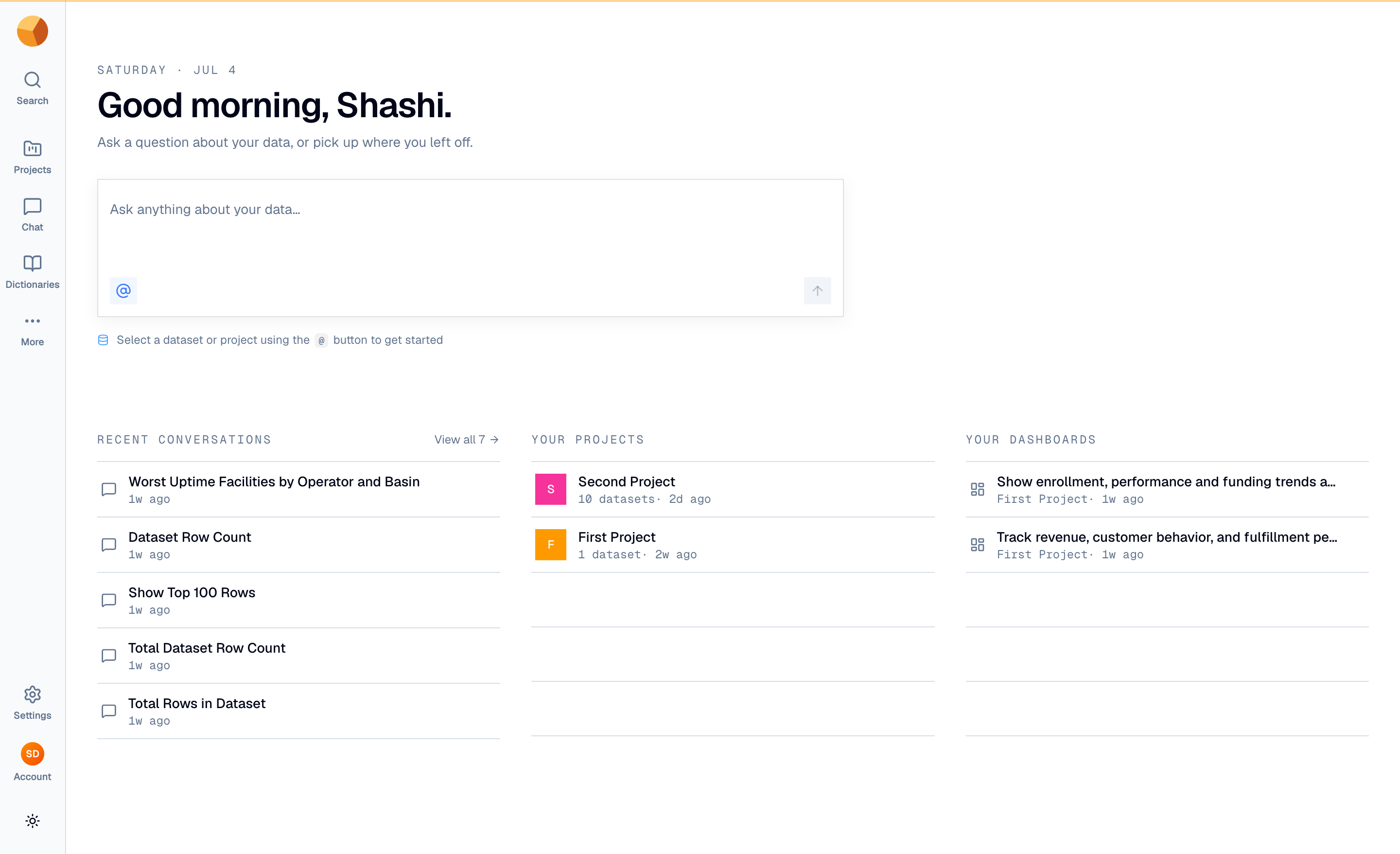
The launchpad is the front door to everything you build. At the top, a composer — "Ask anything about your data…" — starts a chat with your data; use the Select context button to point it at a dataset or project first (send stays disabled until you do). Below it, Recent conversations, Your projects, and Your dashboards take you back to work in progress.
You work inside one organization at a time. To switch, open the account menu at the bottom of the left rail. If your account has no active organization yet, GoPie asks you to pick one before continuing.
Create a project#
A project is where datasets live, along with everything you build on top of them — views, dashboards, and reports.
- Open Projects — select Projects in the left rail.
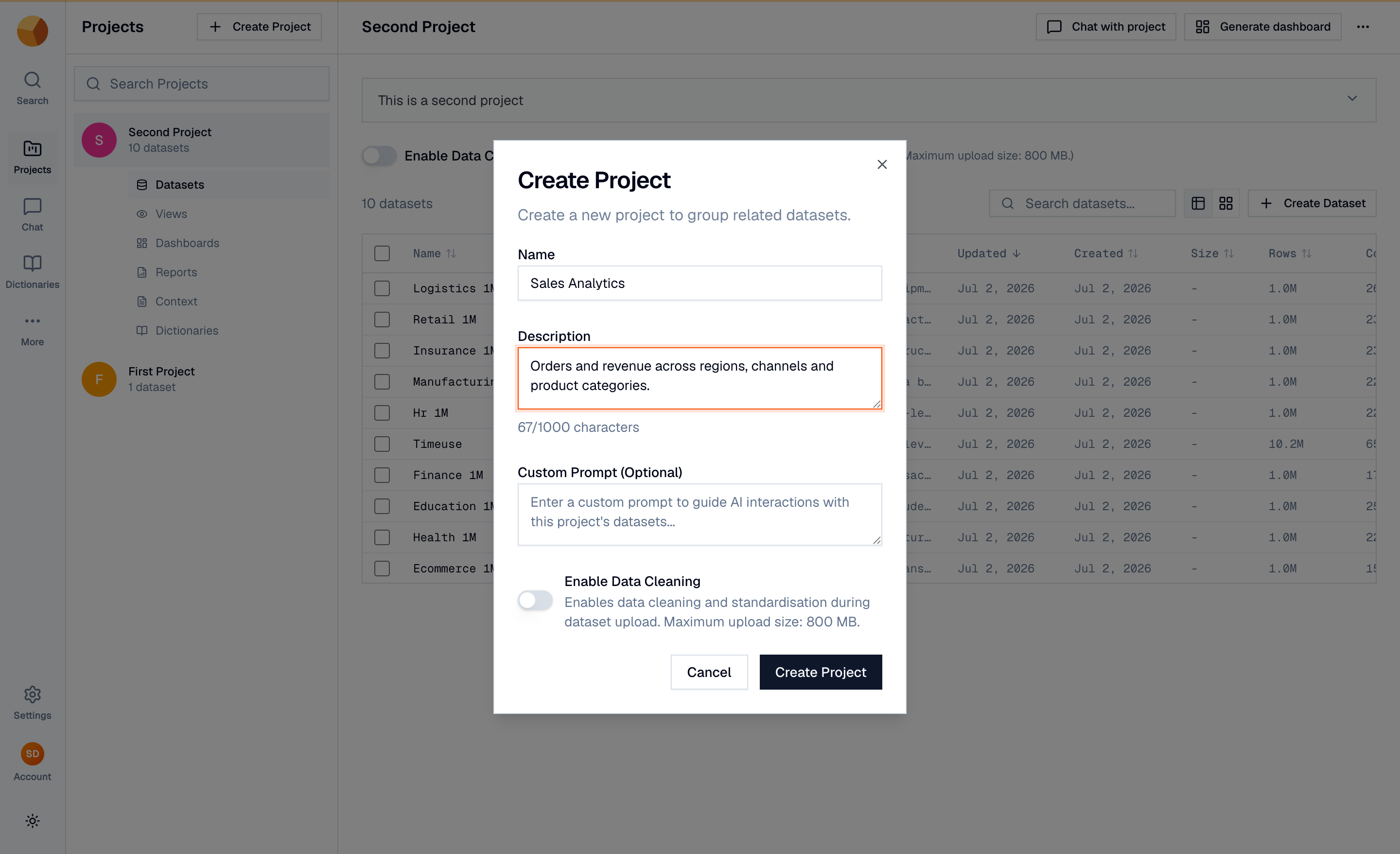
- Select Create Project — the create dialog opens.
- Name and describe the project — both fields are required. This guide uses "Sales Analytics" with the description "Orders and revenue across regions, channels and product categories." The description helps GoPie's AI understand your data, so write a real one. Leave Custom Prompt empty and the Enable Data Cleaning toggle off for now.
- Create the project — GoPie takes you straight into it.
TipName projects after the domain ("Sales Analytics"), not the file you're about to upload — a project holds many datasets.
Explore the new project#
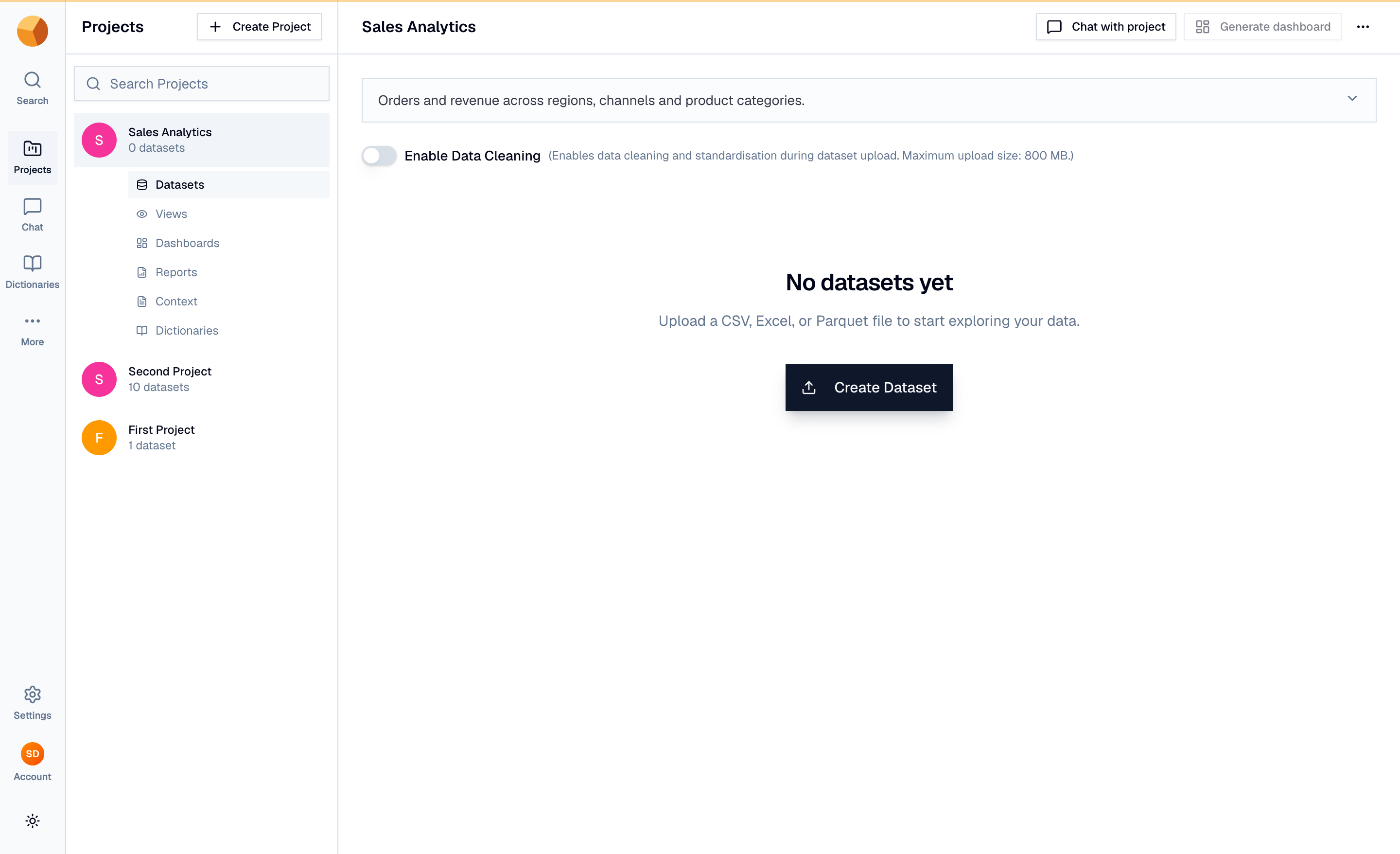
A fresh project shows "No datasets yet" with a Create Dataset button. The tabs across the top — Datasets, Views, Dashboards, Reports, Context, and Dictionaries — are the project's working surfaces, and the Chat with project and Generate dashboard actions in the header stay disabled until the project has at least one dataset.
That is the next step: upload your first dataset.