
Collaboration & admin
The admin console
The admin console at /admin is the platform operator's view: every user and every organisation on the deployment, in one place. It's gated by the system role — only System Admins see it (it appears in their account menu); everyone else is turned away regardless of their organisation role.
NoteThere's no self-service path to becoming a System Admin: the first one is designated by the deployment operator, and from then on System Admins promote others from this console.
Manage users#
Admin → Users lists every account with its system role, status (Active or Banned), email-verification state, and creation date — searchable by name or email.
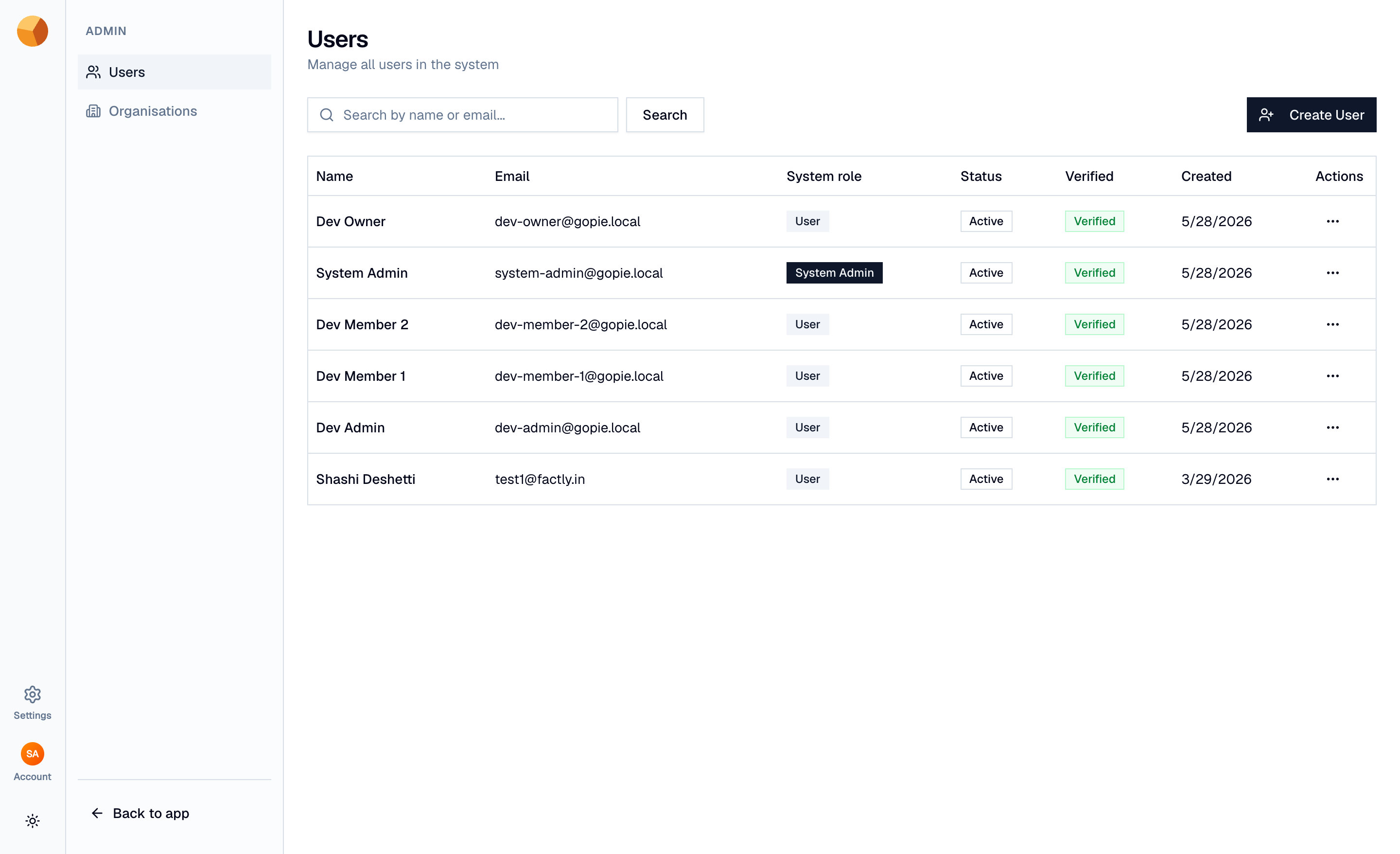
Each row's menu offers:
- Impersonate — become that user (below).
- Change role — flip between User and System Admin. The dialog is explicit that this controls admin-console access, not organisation permissions.
- Ban / Unban — a banned user can't sign in until unbanned; you can record a reason. Banned users can't be impersonated.
Create User provisions an account directly — name, email, password, system role. The email arrives pre-verified, and (when registration is enabled) the new user gets a starter organisation of their own, exactly as if they'd signed up. This is the standard way to add users on self-hosted deployments where public registration is switched off.
There is no delete-user action, and no admin-side password reset — users recover passwords through the sign-in page's own flow.
Impersonate a user#
Impersonation is the support tool: you see exactly what the user sees — their organisations, projects, and permissions, not yours. While active, a banner pins to the top of every page:
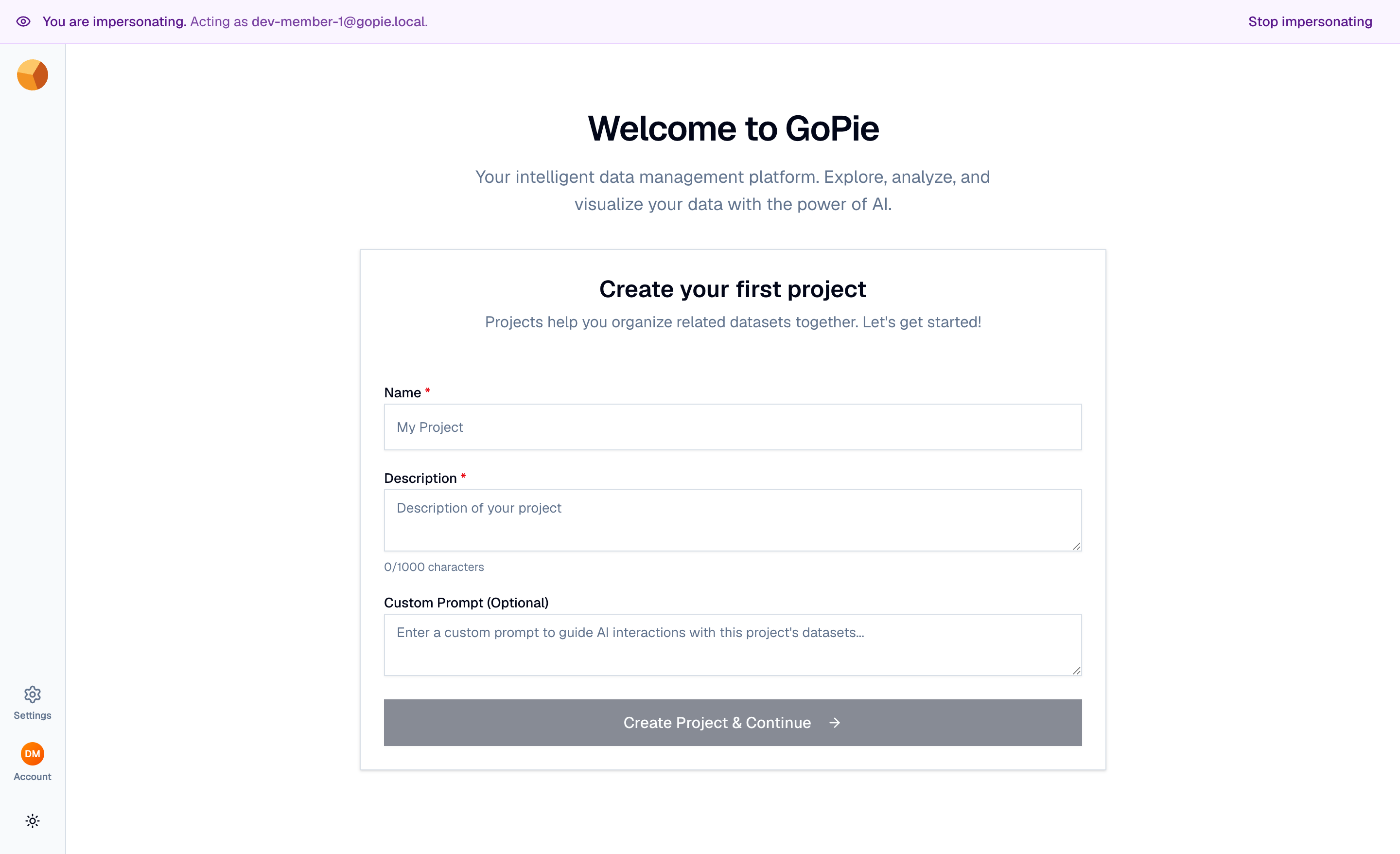
Click Stop impersonating to return to your own session. Anything you do while impersonating happens as that user — treat it as read-mostly debugging, not a way to act on someone's behalf.
Manage organisations#
Admin → Organisations lists every organisation with its slug and member count. From here you can:
- Create an organisation for any user — pick the owner from a user search, name it, done. This pairs with Create User for fully admin-provisioned setups.
- View members of any organisation — and add members, change their organisation roles, or remove them, without being a member yourself.
The console enforces one invariant an organisation owner can't break either: an organisation always keeps at least one owner — the last owner can't be demoted or removed.
TipThe console is also the escape hatch for locked-out teams: when an organisation's only owner leaves the company, a System Admin can promote a new owner from here — no database surgery required.