
Account & settings
Profile & security
Settings → Profile is everything about you — it follows you across organisations. This page walks it top to bottom.
Name & email#
Edit your display name and press Save changes. Your email is permanent — it's your identity across sign-in, invitations and sessions, and can't be changed after sign-up.
Password#
Changing your password asks for the current one first, then the new one twice. Forgot it entirely? Sign out and use Forgot password on the sign-in page — the reset link arrives by email.
NoteIf you only ever signed in with Google, GitHub or Microsoft, you may not have a password at all — that's fine; the linked provider is your sign-in method.
Two-factor authentication#
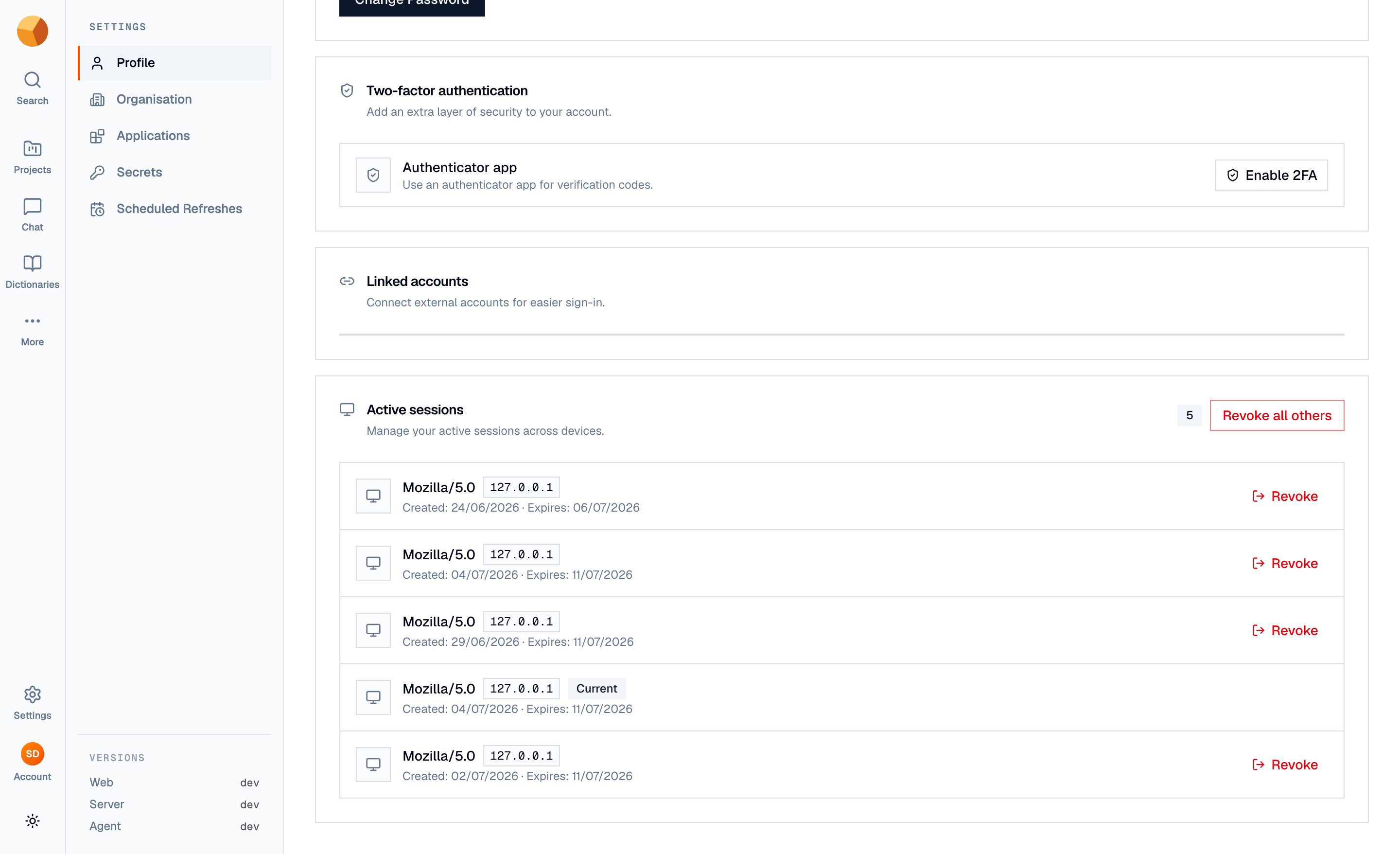
2FA adds a 6-digit code from an authenticator app to your sign-in:
Enable Two-Factor — confirm your password first.
Scan the QR code with any authenticator app (or copy the setup key into it by hand).
Enter the 6-digit code the app shows, to prove the pairing worked.
Save your backup codes. GoPie shows 10 one-time backup codes exactly once — copy them somewhere safe. Each one signs you in a single time if you ever lose the authenticator.
From then on, sign-in asks for a code after your password. Disabling 2FA asks for your password again.
ImportantBackup codes are shown only at setup and each works once. If you run out and lose your authenticator, you're locked out — store them in a password manager, not a screenshot.
Linked accounts#
You can attach Google, GitHub, or Microsoft to your account and use any of them to sign in — same account, same email. Link starts the provider's consent flow; Unlink detaches it. Which providers appear depends on what your deployment has configured.
Active sessions#
The sessions list shows every device currently signed in — browser, IP address, and when it was created and expires, with your current one marked. Revoke any single session to sign that device out, or revoke all others after using a shared machine.
TipChanged your password because something felt off? Revoke the other sessions too — a password change alone doesn't sign out devices that are already in.