
Chat
History, sharing & reliability
Chats persist automatically — every conversation is titled, listed, and re-openable. This page covers managing them, sharing them, and what GoPie does when a connection drops.
Find past conversations#
The History button in the chat header (or Previous Chats on the empty state, or "Recent conversations" on the home launchpad) opens the full history:
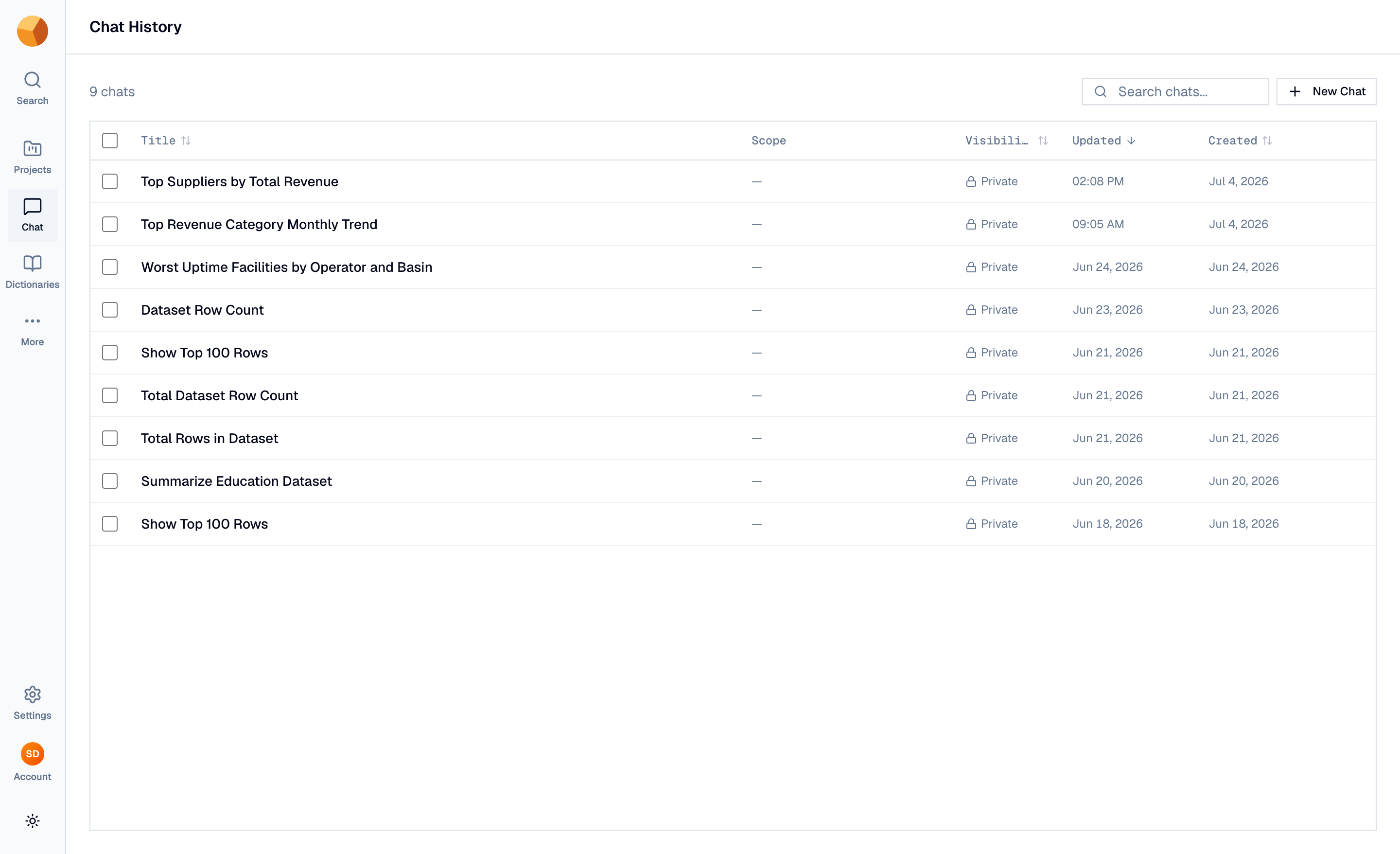
- Each row shows the title, the chat's scope, its visibility, and updated/created dates — sortable, searchable by title.
- Titles are derived automatically from your first question; rename any chat by clicking its title in the chat header and typing — it saves in place.
- Select rows to delete chats (singly or in bulk). Deletion is permanent and removes the transcript.
NoteConversations attached to dashboards don't appear here — they live with their dashboard, under its own Conversations menu. See Dashboard chat.
Reopening a chat restores the transcript and its context chips, and re-runs the last query into the results panel. If a dataset the chat used has since been deleted, the transcript still reads fine — the queries just can't run anymore.
Share a chat#
Chats are private by default — only you can open them. The Share button in the header sets the visibility:
- Private — only you can view the chat.
- Organisation — marks the chat as shared with your organisation.
- Public — anyone with the link can view the chat, sign-in or not.
Choosing Organisation or Public reveals the chat's link with a copy button. The link is the chat's address — there's no separate share token, so flipping visibility back to Private closes access immediately.
ImportantToday, a chat link opens for someone else only when visibility is Public — organisation-wide viewing is still being wired up. To show a teammate a conversation, use Public, or keep the analysis in a saved view or dashboard they can access through normal project permissions.
A small icon next to the chat title always shows the current visibility.
Rely on the stream#
Chat answers stream token by token, and GoPie assumes connections drop:
- Reload mid-answer and the stream resumes. Your question is saved before generation starts, so refreshing the page (or briefly losing network) picks the answer back up rather than losing the turn.
- A watchdog watches the stream. If tokens stop flowing, a banner offers Reconnect; if the stream truly fails, it shows the error with Retry.
- Stop anytime with Esc or the stop button — the transcript keeps everything generated up to that point.