
Chat
Save & export results
A good chat answer is worth keeping. The results panel offers two ways: Save as view makes the query a permanent, queryable object; Download results exports the rows as a file.
Save a result as a view#
The eye icon in the results panel toolbar turns the current query into a saved view — a live, reusable dataset that stays current as the underlying data changes.
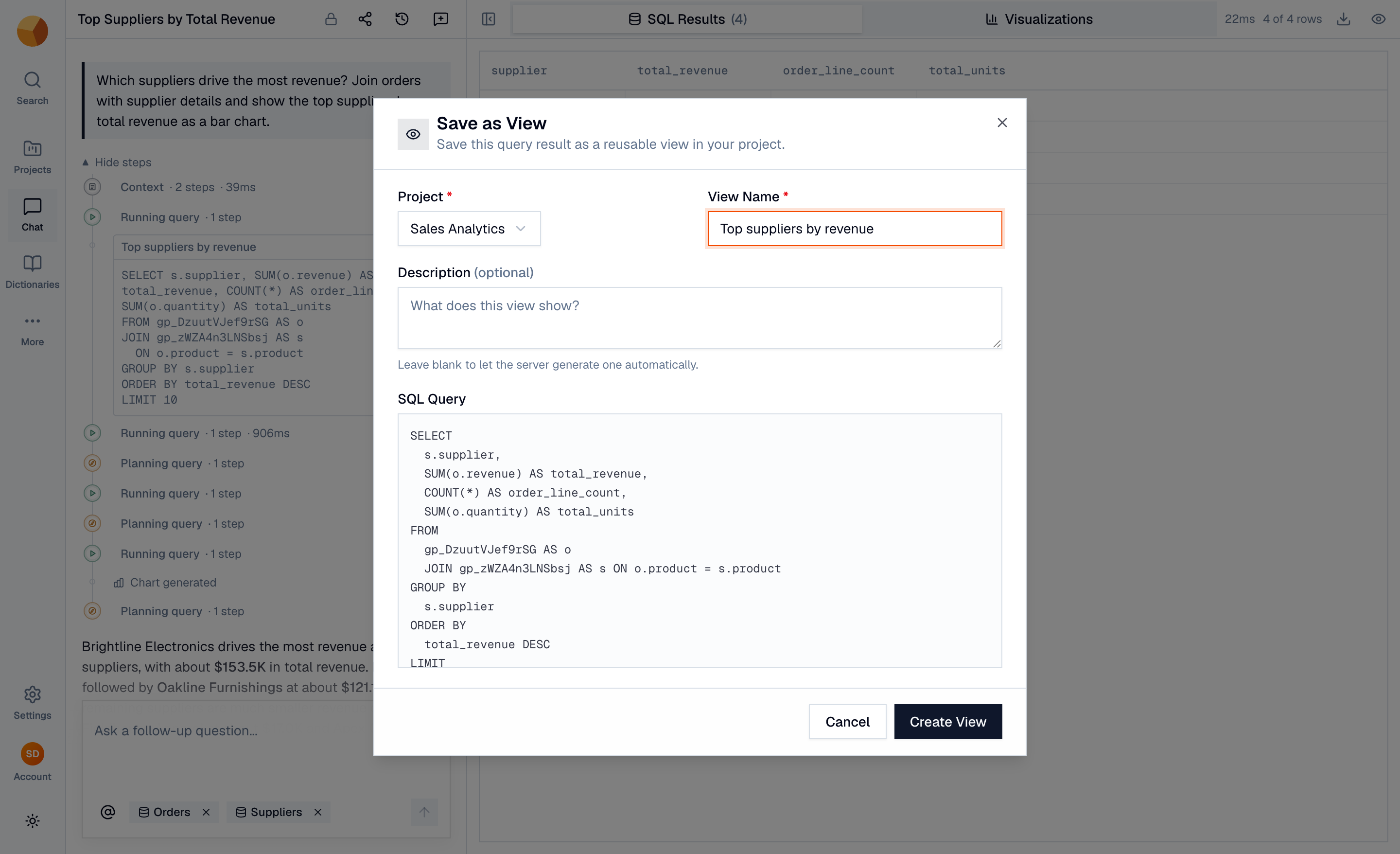
- Open the dialog — available once a turn has a successful query with rows.
- Pick the project — the dialog offers the projects the query's datasets belong to, so the view lands next to its sources.
- Name it — at least 3 characters. The description is optional (10–1000 characters): leave it blank and GoPie writes one from the SQL automatically.
- Create View — GoPie saves it and opens the new view's page.
The chat's SQL becomes the view's defining query — fixed at creation, like any view. From there it behaves like any dataset: chat with it, query it, generate a dashboard from it, or expose it over its REST API.
TipSave a view when the question is durable — "monthly revenue by category" — and you'll re-ask it. Download when you need the rows somewhere else right now.
Download the rows#
The download icon in the results panel opens the export dialog:
- Format — CSV, JSON, or Parquet.
- SQL Query — prefilled with the turn's query and editable, so you can widen a filter or drop columns before exporting (Format SQL tidies it up). Chat results shown in the panel are paged, but the export runs the query in full — no row cap.
GoPie prepares the file server-side and opens it in a new tab when ready. Links stay valid for 24 hours, and repeating the same export within that window reuses the prepared file — the full export reference is at Downloads & exports.