
Getting started
Upload your first dataset
Start the wizard#
You need a project first — create one in the quickstart if you haven't. This guide uploads orders.csv, a 1,200-row file of order data, into the Sales Analytics project.
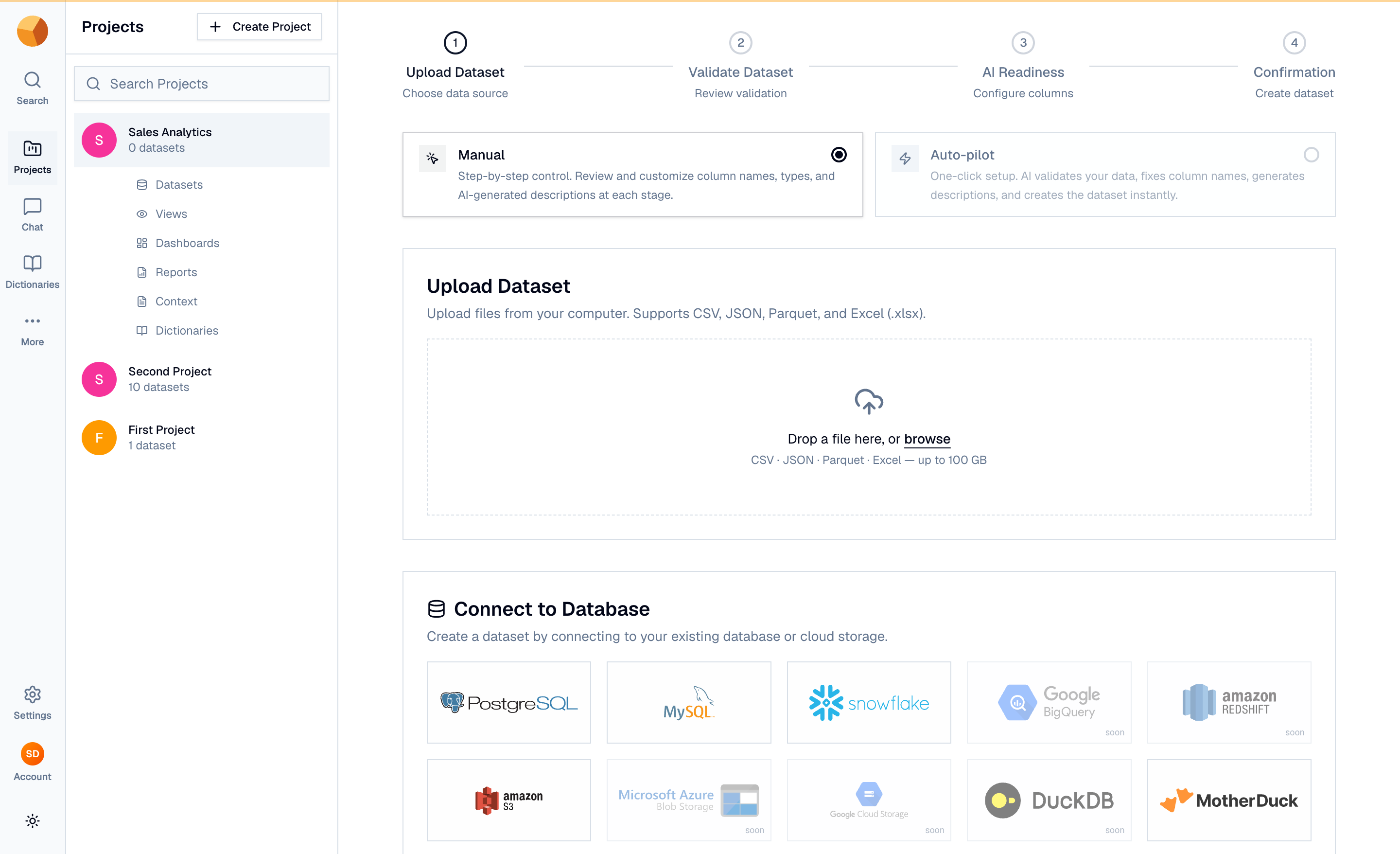
From your project's Datasets tab, select Create Dataset. The wizard has four steps — Upload Dataset, Validate Dataset, AI Readiness, and Confirmation — and two modes at the top. Manual gives you step-by-step control: you review column names, types, and AI-generated descriptions at each stage. Auto-pilot does all of it in one click — AI validates the file, fixes column names, generates descriptions, and creates the dataset instantly. This guide follows Manual.
Walk through the four steps#
- Upload the file — drop
orders.csvon the dropzone, or browse for it. CSV, JSON, Parquet, and Excel files up to 100 GB work here; you can also connect a database source such as PostgreSQL, MySQL, Snowflake, Amazon S3, or MotherDuck. Validation runs in your browser before anything uploads, and the staged file shows a live manifest line: "orders.csv — CSV — 11 cols · 105 KB — Ready". - Review the validation results — step 2 reports "CSV Validation Successful" and lists the 11 detected columns with their types.
- Make the columns AI-ready — step 3 opens a column editor. Each column gets a normalized name and an AI-generated description; edit either until every column reads Valid.
- Confirm and create — GoPie suggests the dataset name "Orders" from the file and drafts a dataset description. Adjust both if you want, add an optional custom prompt, then select Create Dataset.
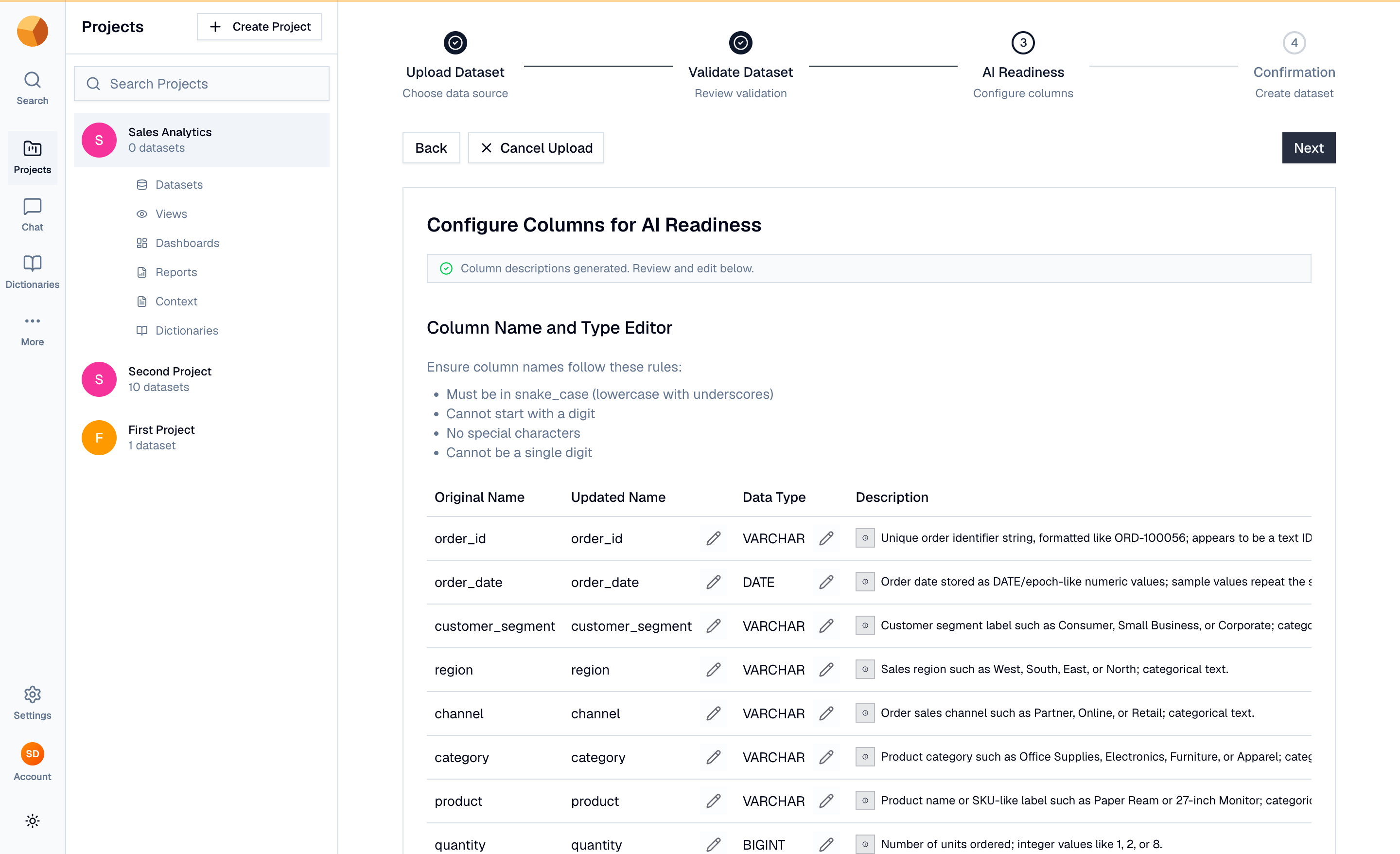
NoteColumn names are normalized to snake_case — lowercase, no leading digit, no special characters — so SQL and the AI work reliably. You can edit any AI-generated description before the dataset is created.
See what you get#
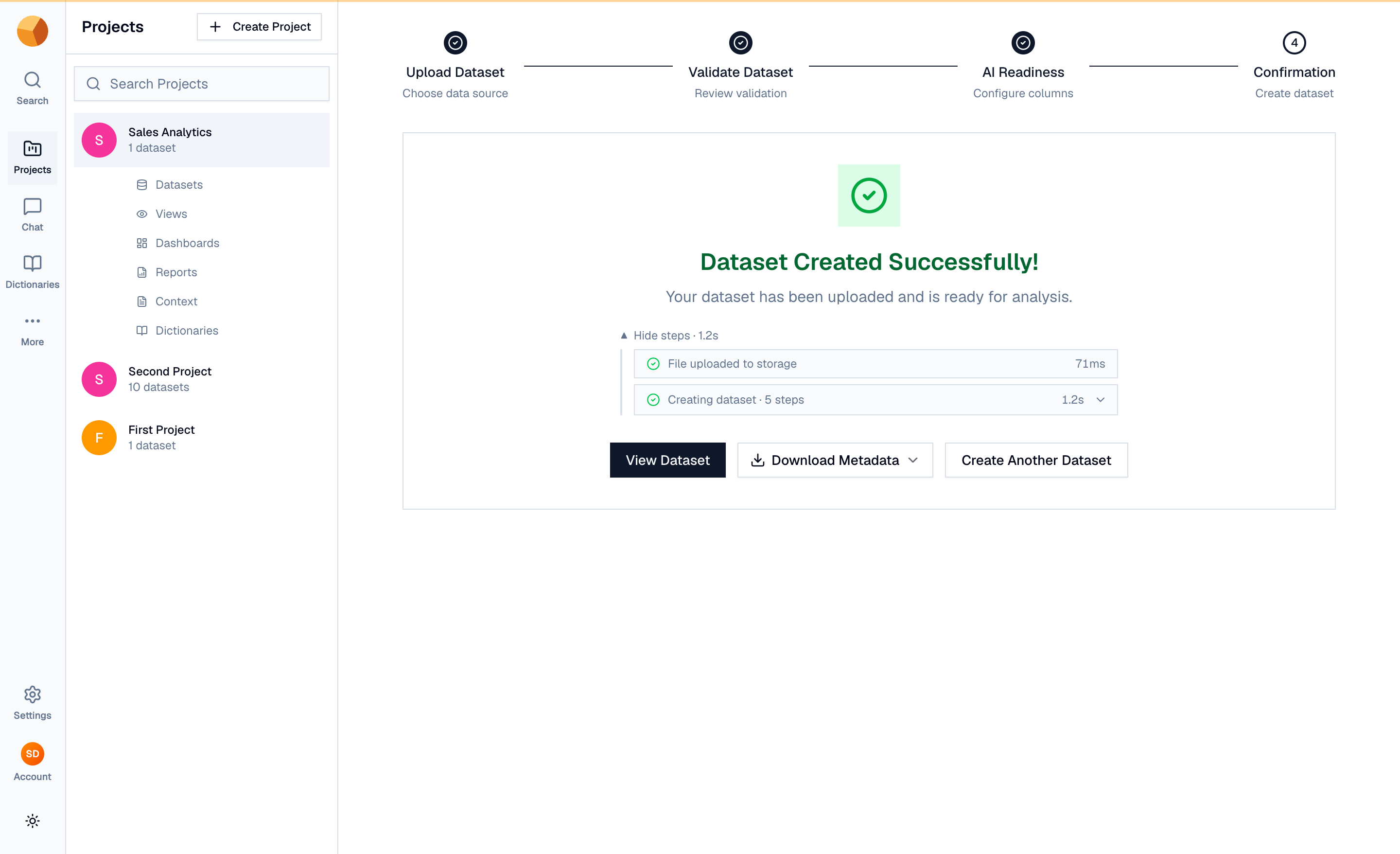
The success screen shows a timing breakdown and offers View Dataset or Create Another Dataset. Open the dataset: you get a preview of the first 100 rows from an auto-run SELECT, column profiles in the right rail, row and column counts, and the generated table name under Dataset Details.
The dataset is queryable the moment it exists — by you, and by the AI. Next, run your first query in the SQL playground — or, for the full upload reference (formats, Auto-pilot, database sources), see Uploading files.