
Datasets & sources
Refresh & scheduled refreshes
Datasets don't have to be static. File-backed datasets accept a new file at any time; source-backed datasets re-run their stored query on demand — or on a schedule.
The refresh action lives on the dataset page's right rail (the circular-arrows button, "Refresh dataset").
Refresh a file-upload dataset#
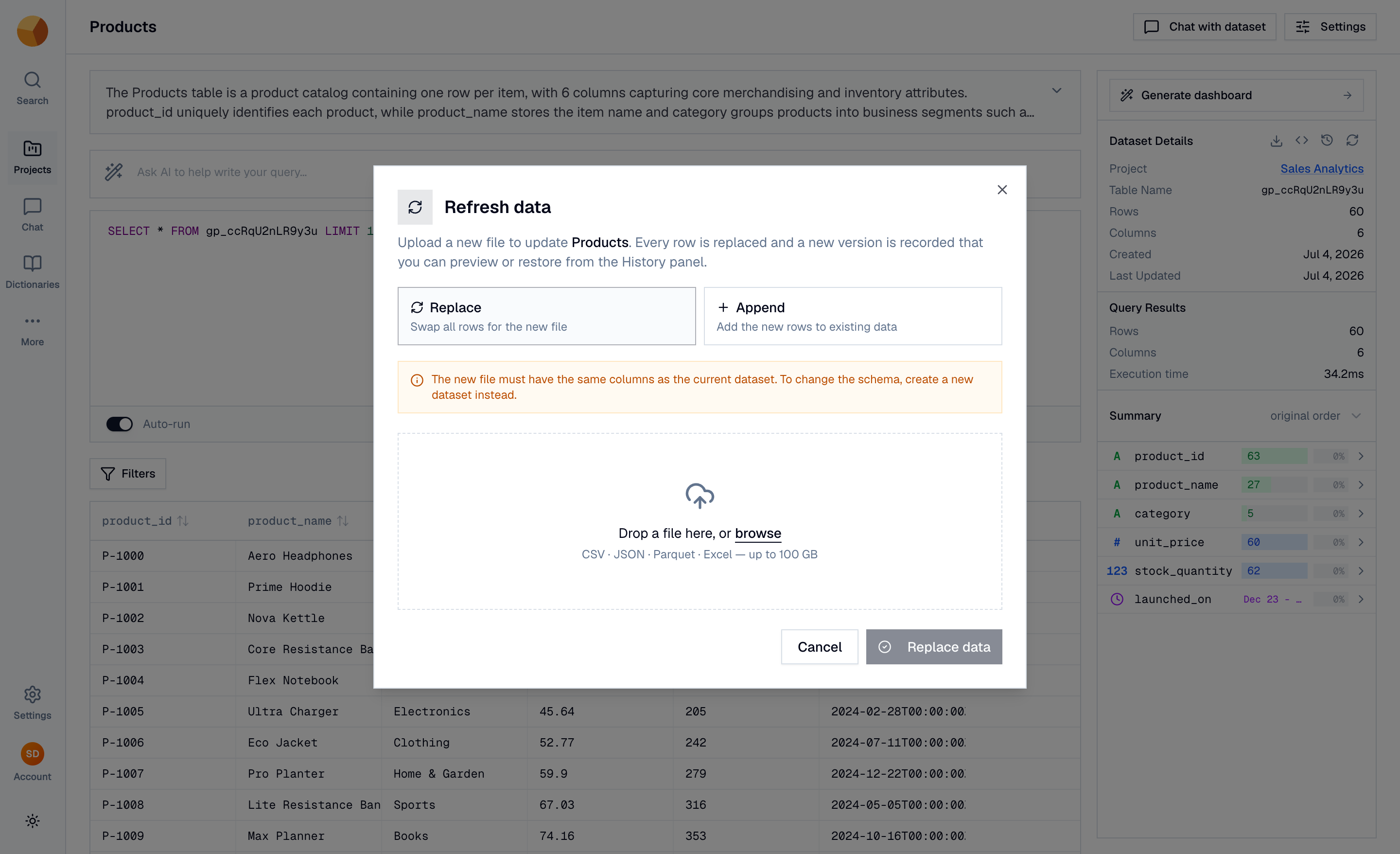
Upload a new file in one of two modes:
- Replace — "Swap all rows for the new file". Every existing row is dropped and the new file is ingested in full.
- Append — "Add the new rows to existing data". The new file's rows are inserted alongside what's already there — right for periodic drops like monthly exports.
Either way, the new file must have the same columns as the current dataset — the dialog validates the schema and names any missing or unexpected columns before anything uploads. To change the schema, create a new dataset instead.
Refresh a database or cloud source dataset#
For datasets imported from PostgreSQL, MySQL, Snowflake, or MotherDuck, the refresh dialog offers:
- Full refresh — "Reload every row from the source. Slower, but always consistent." Re-runs the stored SQL query and replaces the dataset's contents.
- Incremental refresh — "Append only rows newer than the last refresh, based on the timestamp column." Available when the source was created with a Timestamp column; GoPie remembers the last imported value and appends only rows beyond it. If no timestamp column is configured, the option is disabled: "This source has no timestamp column configured — only full refresh is available."
S3-sourced datasets support full refresh only.
TipIncremental refresh only appends. Rows that were updated or deleted at the source after import won't be corrected — run a full refresh when you need exact consistency.
Know what a refresh preserves#
A refresh streams its progress live (validating, ingesting, updating metrics, re-syncing the AI schema) and is safe to lean on:
- Column descriptions, the dataset description, and custom metadata survive — refreshes recompute row counts, statistics, and profiles, but your documentation is merged back in, never wiped.
- A failed refresh doesn't leave the dataset half-updated — the write either completes or rolls back.
- The schema index the AI uses is refreshed automatically, so chat answers reflect the new data.
- Each refresh records a version you can preview or restore from the History panel — see Version history & time travel.
Schedule automatic refreshes#
Database-sourced datasets can refresh themselves. From the dataset page's ⋯ menu, select Schedule refresh…:
- Pick a cadence — Hourly (top of every hour), Daily, Weekly, or Monthly.
- The Active toggle pauses and resumes the schedule without deleting it.
- The dialog shows Last run and Next run once the schedule has fired.
One schedule per dataset. File-upload datasets can't be scheduled — they have no source to pull from.
ImportantSchedules run in UTC. A daily schedule fires at 00:00 UTC — plan around the offset if your team works in another timezone.
Manage schedules in one place#
Settings → Scheduled Refreshes lists every schedule in your organisation — dataset, interval, last run, next run, and an Active/Inactive badge — with a delete action per row. To pause or change a schedule's cadence, use the Schedule refresh… dialog on its dataset.
Check who can do what#
- Manual refresh — organisation owners and admins can refresh any dataset; members can refresh datasets they created.
- Schedules — creating, editing, pausing, and deleting schedules is limited to organisation owners and admins.
Two refreshes of the same dataset never overlap — if one is already running, the next waits its turn.
Self-hosting note
Manual refreshes work on every GoPie deployment out of the box. Scheduled refreshes are executed by the platform's background worker — if schedules can't be created on your deployment, ask your administrator to enable it (covered in the self-hosting section of these docs, coming soon).