
Datasets & sources
Schema & column descriptions
The AI is only as good as what it knows about your data. Dataset and column descriptions are that knowledge: they're embedded into GoPie's schema index, searched when you chat, and quoted when the AI writes SQL. Two minutes of documentation buys visibly better answers.
Describe the dataset#
Every dataset has a description and an optional custom AI prompt, editable in two equivalent places: the collapsible description banner on the dataset page, and Settings → General. Both autosave when you click away — there is no Save button.
- Description — what the data is, where it came from, what a row represents. Also drafted automatically at upload; edit it any time.
- Custom AI prompt — instructions included whenever the AI generates queries for this dataset: "revenue figures are in cents", "always exclude rows where status = 'test'". Projects have their own prompt too; both apply.
A Regenerate button (the sparkles icon) redrafts the description with AI.
Describe the columns#
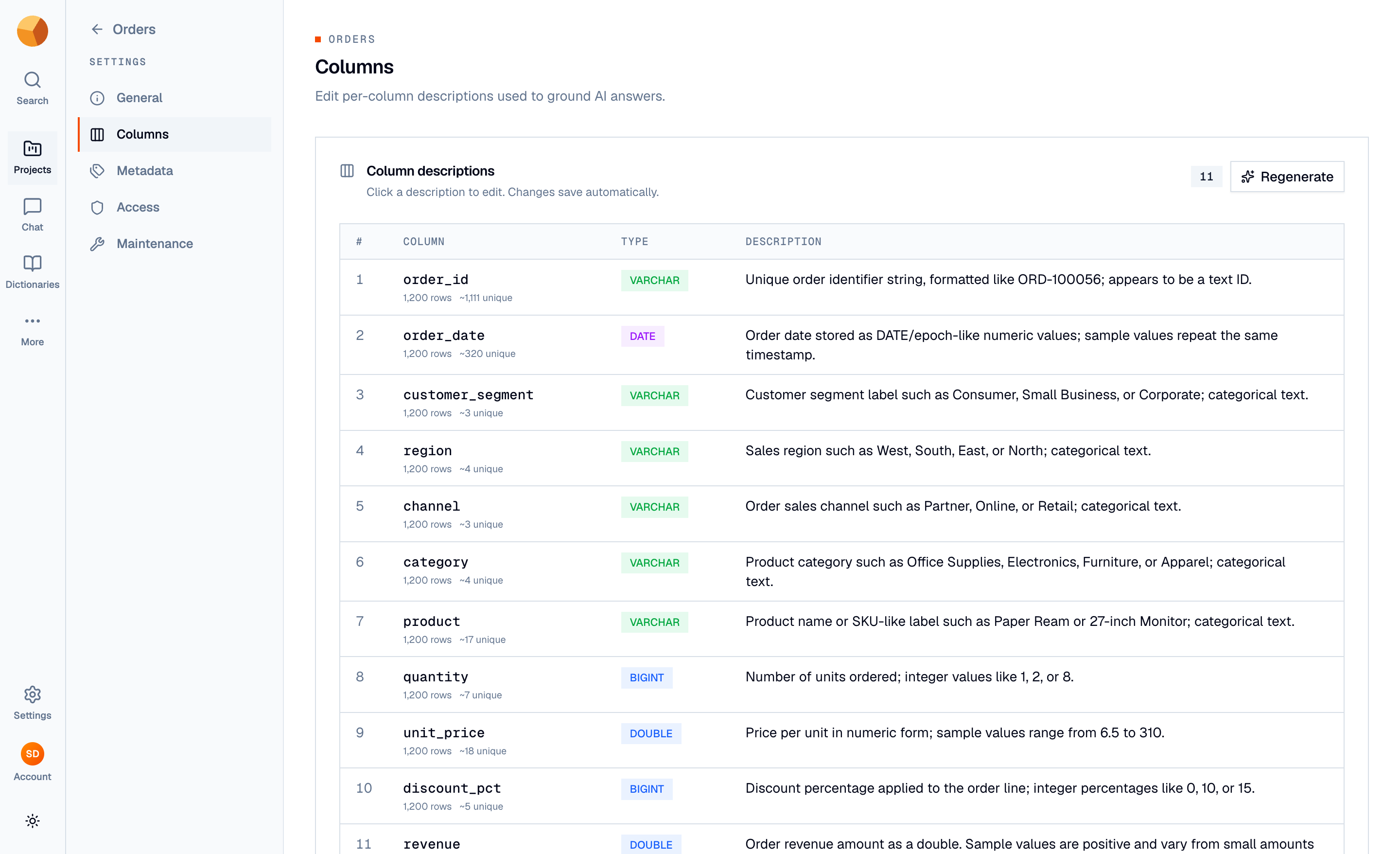
Settings → Columns lists every column with its type, row/unique counts, and description. Click a description to edit it in place — ⌘ Enter saves, Esc cancels, and clicking away saves too.
Descriptions are first drafted by AI during upload (the AI Readiness step). To redraft the whole set later, use the tab's Regenerate button — GoPie generates descriptions for every column in batches, using your project's reference documents as context when they're indexed.
TipPrioritize columns with cryptic names or coded values. "cust_seg — customer segment: E=enterprise, M=mid-market, S=small business" turns a column the AI would guess about into one it uses correctly.
Read the column profiles#
The Summary panel on the dataset page profiles every column: type, null percentage, and expandable stats, sortable by type, null %, or name. Right after creation the panel may read computing… while statistics are calculated — it fills in on its own within a minute or so.
Keep the search index fresh#
GoPie indexes each dataset's name, description, and per-column names, types, descriptions, and sample values into a semantic search index — that's how chat finds the right datasets and grounds its SQL. The index updates itself when you edit descriptions or refresh data.
If a dataset isn't showing up in chat (for example, indexing failed during creation — you'd have seen a warning with a Re-index button), rebuild it under Settings → Maintenance → Re-index. The action is safe to run any time.
Trust that documentation survives#
Descriptions live with the dataset, not the data: refreshes recompute statistics but merge your dataset and column descriptions back in. You won't lose documentation by keeping data current.