
Datasets & sources
Deleting & managing datasets
Day-two dataset management: the small actions that keep a project tidy, and the one big destructive action.
Rename a dataset#
Click the dataset's title in its page header and type — the name saves in place. Renaming changes only the display name; the internal table name your SQL uses stays stable, so nothing referencing the dataset breaks.
Export data#
The Download button in the dataset's right rail exports data as CSV, JSON, or Parquet. The export is SQL-shaped — it defaults to SELECT * FROM <table>, and you can edit the query to export a filtered or aggregated slice instead. GoPie prepares the file and opens a download link when it's ready. The full export reference (query-result exports, link reuse, versioned exports) is at Downloads & exports.
NoteDownload links are valid for 24 hours — save the file when you generate it. Requesting the same export twice within that window reuses the prepared file instead of exporting again.
For a schema report rather than the data itself, use Download metadata (PDF/JSON) — see Dataset settings → Metadata.
Delete a dataset#
Delete lives in Settings → General → Danger zone.
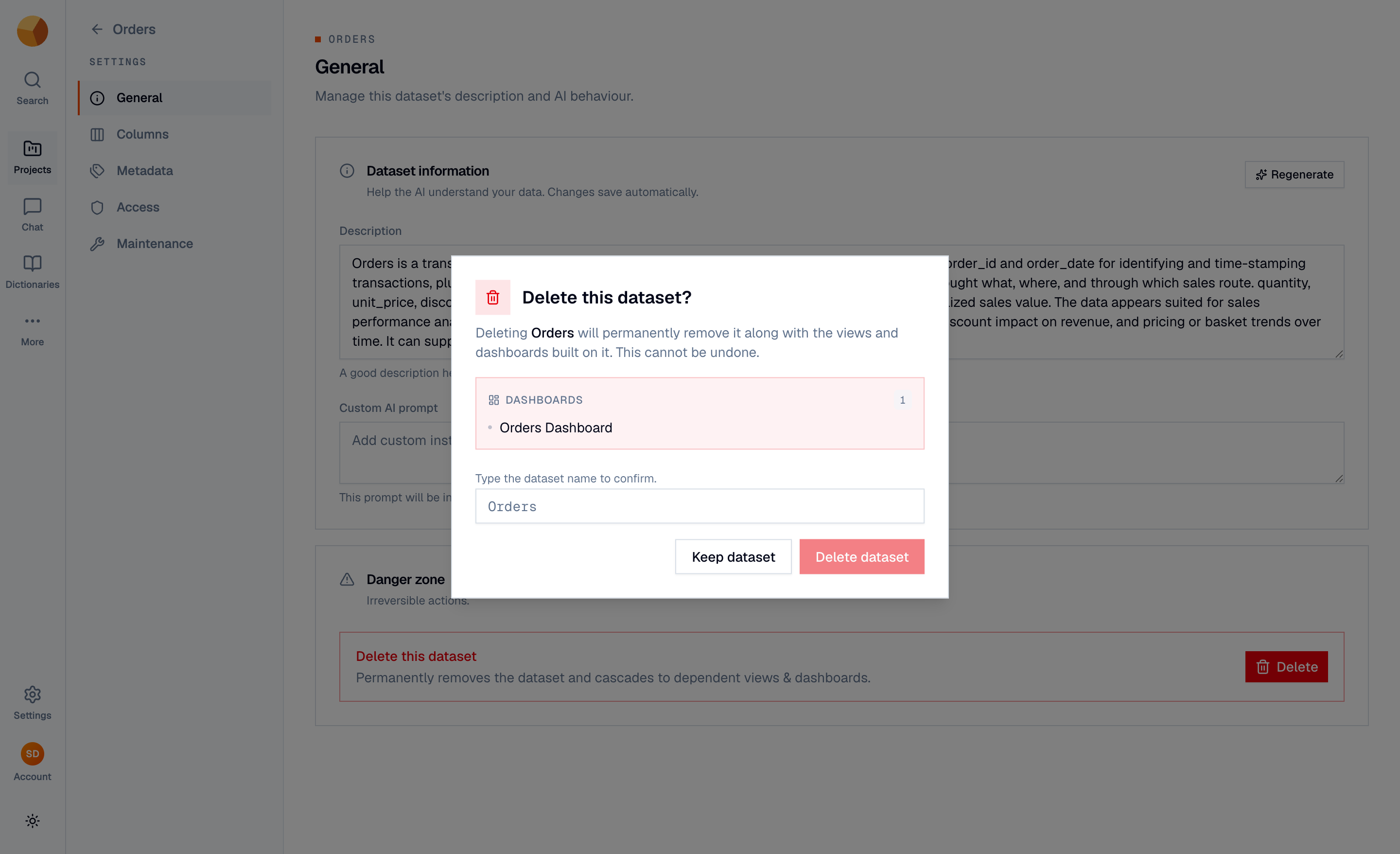
Deleting a dataset permanently removes it along with everything built on it. The confirmation dialog enumerates the dependents before you commit:
- Views whose SQL references the dataset.
- Dashboards on the dataset or on those views.
- The dataset's refresh schedule and stored source credentials, if any.
Type the dataset's exact name to enable Delete dataset. There is no undo and no trash — the data, its version history, and the dependents are gone.
WarningDeletion cascades — it never blocks. If a view or dashboard someone else relies on is built on this dataset, deleting the dataset deletes those too. Read the dependents list carefully.
Chat conversations are not deleted — past chats keep their transcripts, but queries against the deleted dataset will no longer run.
Who can delete#
Organisation owners can delete any dataset; everyone else can delete only datasets they created. If you don't see the Danger zone, you don't have delete rights on this dataset.
Deleting a project#
Deleting a project cascades the same way — every dataset, view, dashboard, and document inside it is removed. The confirmation dialog shows the counts and requires typing the project name when the project isn't empty.
Clean up source credentials#
Datasets imported from databases or cloud storage store their connection details server-side. Deleting the dataset removes them; you can also review and delete stored credentials directly under Settings → Secrets.
Know what doesn't exist (yet)#
- Moving a dataset between projects — not supported; re-upload or re-import into the target project.
- Duplicating a dataset — not supported; create a new dataset from the same file or source.