
Datasets & sources
Database & cloud sources
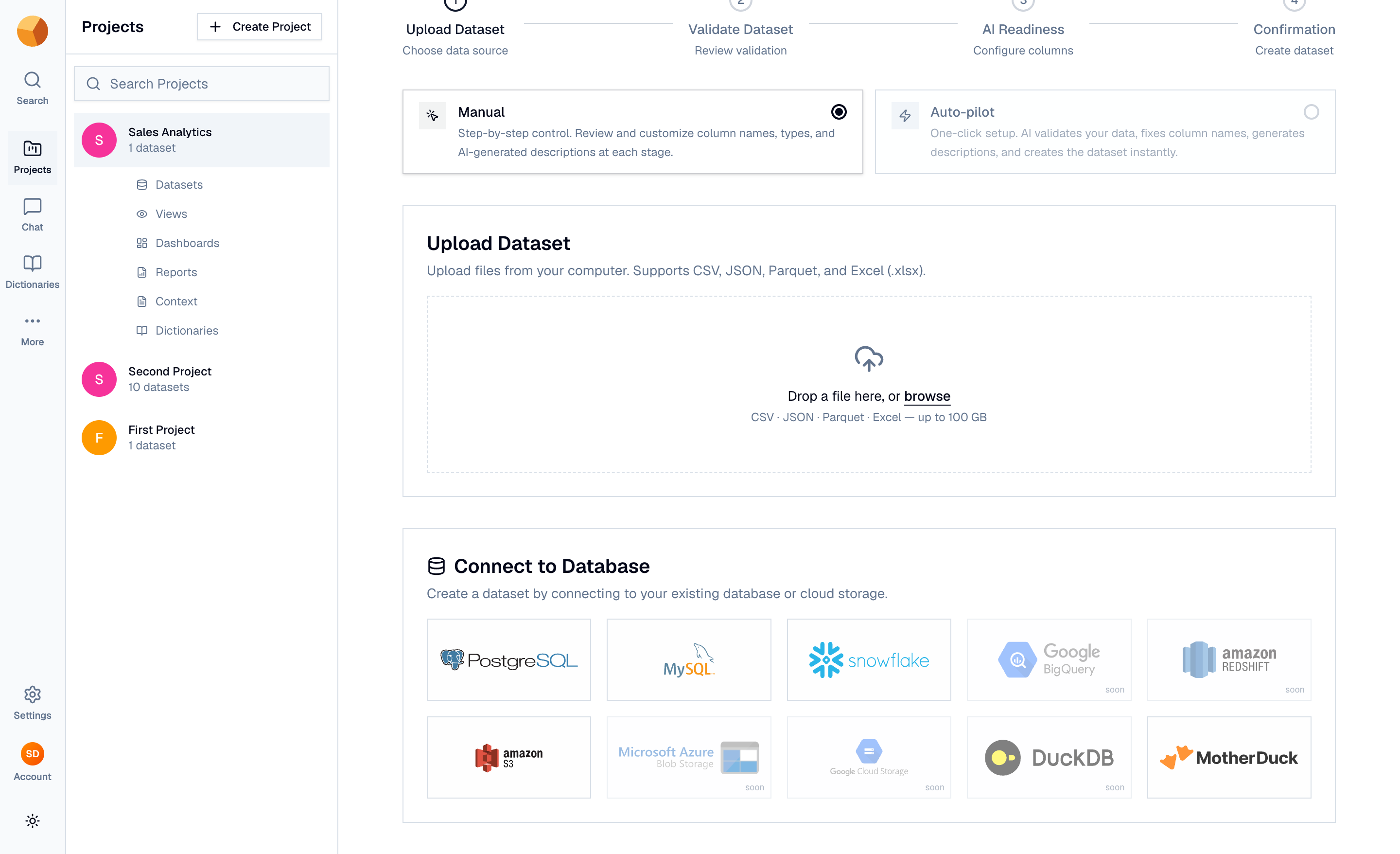
Instead of uploading a file, you can create a dataset straight from a system you already run: write a SQL query against your database, and GoPie imports the result. Source-backed datasets remember where they came from, so you can refresh them on demand or on a schedule.
See what you can connect#
| Source | You provide | Custom SQL | Incremental refresh |
|---|---|---|---|
| PostgreSQL | Connection string | Yes | Yes |
| MySQL | Connection string | Yes | Yes |
| Snowflake | Account credentials string | Yes | Yes |
| MotherDuck | Service token | Yes | Yes |
| Amazon S3 | Object path + access keys | — (imports a file) | No — full refresh only |
BigQuery, Amazon Redshift, Azure Blob Storage, and Google Cloud Storage appear in the picker as dimmed "soon" tiles — direct imports for those are planned but not available yet.
Import from a source#
- Open the picker — from your project, select Create Dataset. On the first step, below the file dropzone, you'll find Connect to Database with a grid of source tiles. (The grid shows in Manual mode before any file is staged.)
- Pick a source and fill the form — every source shares the same shape: a Dataset name, a connection string (or S3 path), and for databases a SQL query whose entire result becomes the dataset. Two optional fields round it out: a Timestamp column that enables incremental refresh, and an AI context hint that helps the AI understand the data.
- Select Import dataset — GoPie connects, runs your query (or reads the file), and creates the dataset. You land on the dataset page when it finishes.
There is no separate "test connection" step — a bad connection string, failed authentication, or a SQL error surfaces when the import runs, right in the form.
NoteThere's no table browser: you write the query yourself, so anything you can express in SQL — joins, filters, aggregations — can define the dataset. Add a
LIMITwhile you experiment, then remove it for the real import.
Understand how credentials are handled#
- Credentials are stored server-side with the dataset's source configuration and are never displayed again after creation — API responses omit the connection string and secret keys.
- Each dataset carries its own connection; credentials aren't shared or reusable across datasets.
- You can review and delete stored source credentials under Settings → Secrets — a read-only registry listing each source's driver, query, and creation date. Deleting an entry permanently removes the stored connection details.
ImportantA source connection can't be edited after creation. To change the query or the credentials, create a new dataset from the source and delete the old one.
Keep source datasets fresh#
A source-backed dataset shows a refresh action on its page: re-run the stored query in full, or — if you configured a timestamp column — append just the rows that are new since the last run. Owners and admins can also put refreshes on an hourly, daily, weekly, or monthly schedule. Details on both: Refresh & scheduled refreshes.